Userled empowers marketing and sales teams by tracking personalized engagement across multiple channels. This guide details how Userled data—including personalized landing page interactions, account and contact activity, and time spent—is pushed to your CRM, enabling you to measure outcomes and ROI effectively.
Userled integrates seamlessly with major CRMs like Salesforce and HubSpot to push engagement data, helping teams gain actionable insights. Here's how it works:
Userled captures engagement data from personalized assets (landing pages, web experiences, and outbound campaigns).
Metrics include:
Page visits
Time spent on personalized pages
CTA clicks
Repeated visits and session frequency
Account-level and contact-level engagement
Userled maps engagement data to CRM objects such as Contacts, Accounts, and Opportunities.
Events and activities are logged in real-time.
Engagement scores are automatically updated to reflect high-intent behavior.
Engagement metrics can also be pushed to webhooks for additional activation and reporting needs.
Userled provides an in-app engagement and attribution dashboard to help teams measure ROI.
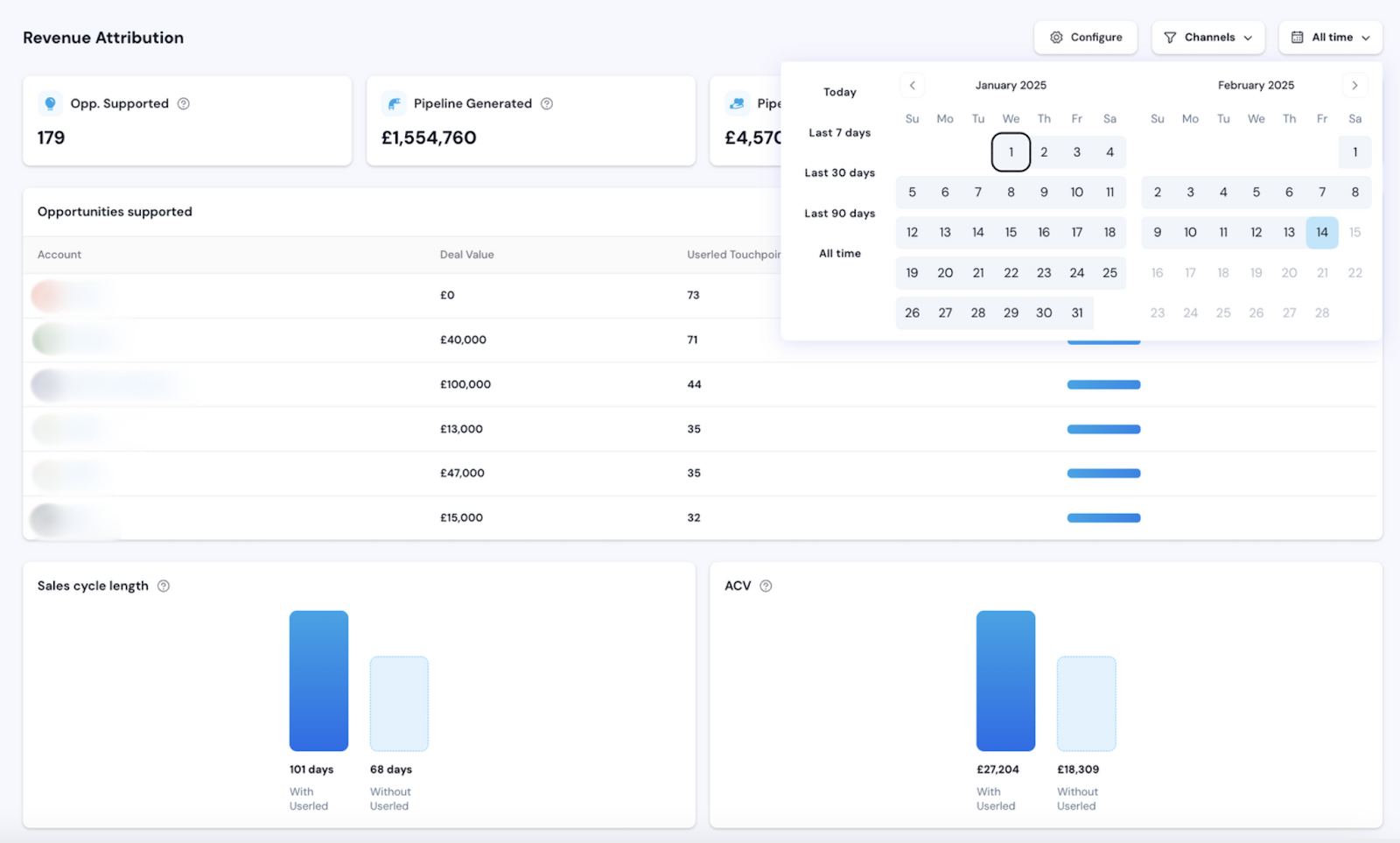
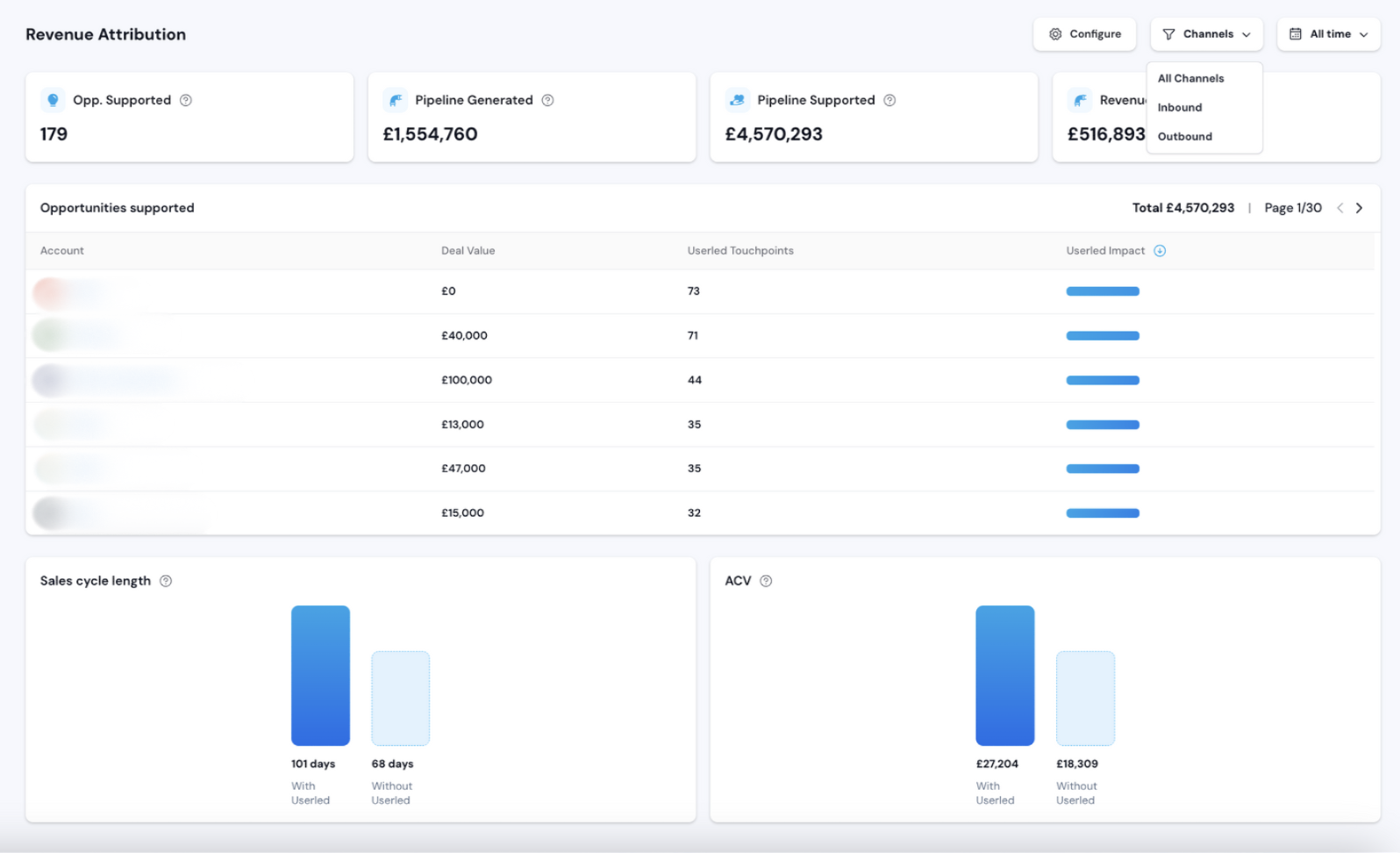
All engagement metrics are available within the dashboard for analysis and reporting.
Where Data Appears in CRM
Salesforce:
Engagement details are stored under Contact and Account records.
Custom fields for Userled interaction data.
Reports and dashboards can be built to visualize trends.
Marketo:
Userled activities trigger workflows and campaigns.
Lead scoring models incorporate Userled engagement.
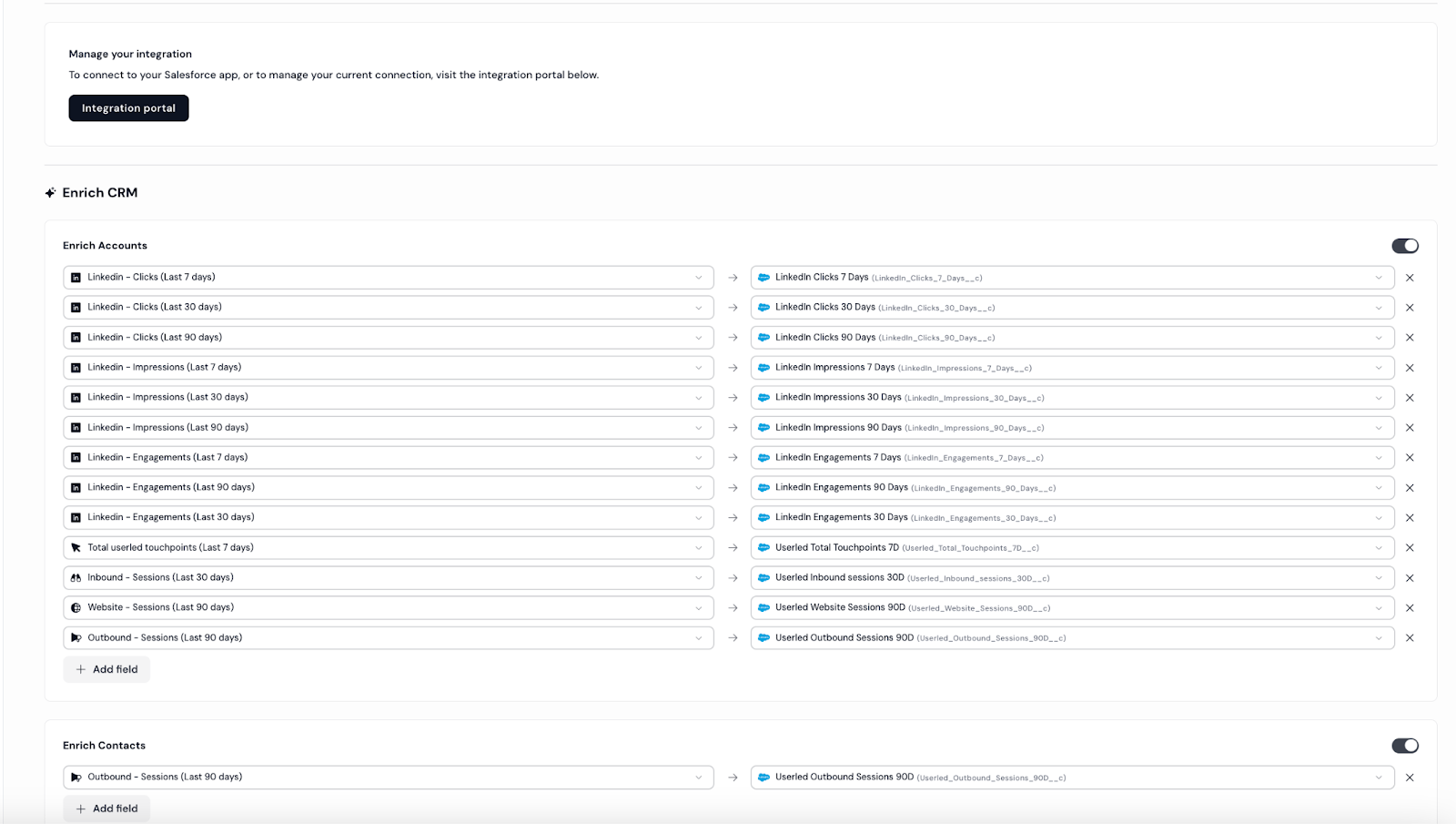
Ensure your Salesforce environment is connected to Userled via API. Navigate to Settings > Integrations > Salesforce to authenticate and configure data sync.
Userled pushes engagement metrics to Salesforce fields such as:
Userled data point | Mapped to Salesforce Field |
LinkedIn - Clicks (Last 7 days) | LinkedIn - Clicks (Last 7 days) |
LinkedIn - Clicks (Last 30 days) | LinkedIn - Clicks (Last 30 days) |
LinkedIn - Clicks (Last 90 days) | LinkedIn - Clicks (Last 90 days) |
LinkedIn - Impressions (Last 7 days) | LinkedIn - Impressions (Last 7 days) |
LinkedIn - Impressions (Last 30 days) | |
LinkedIn - Impressions (Last 90 days) | |
LinkedIn - Engagements (Last 7 days) | |
LinkedIn - Engagement (Last 30 days) | |
Linkedin - Engagement (Last 90 days) | |
Inbound - Sessions (Last 7 days) | |
Inbound - Sessions (Last 30 days) | |
Inbound - Sessions (Last 90 days) | |
Outbound - Sessions (Last 7 days) | |
Outbound - Sessions (Last 30 days) | |
Outbound - Sessions (Last 90 days) | |
… |
Go to Reports > New Report.
Choose "Contacts & Accounts" as the base report type.
Add relevant Userled engagement fields.
Visualize trends in engagement, high-intent accounts, and ROI impact.