To configure consent banners on your landing pages, you must have an Admin role. If you do not, reach out to your Userled admin.
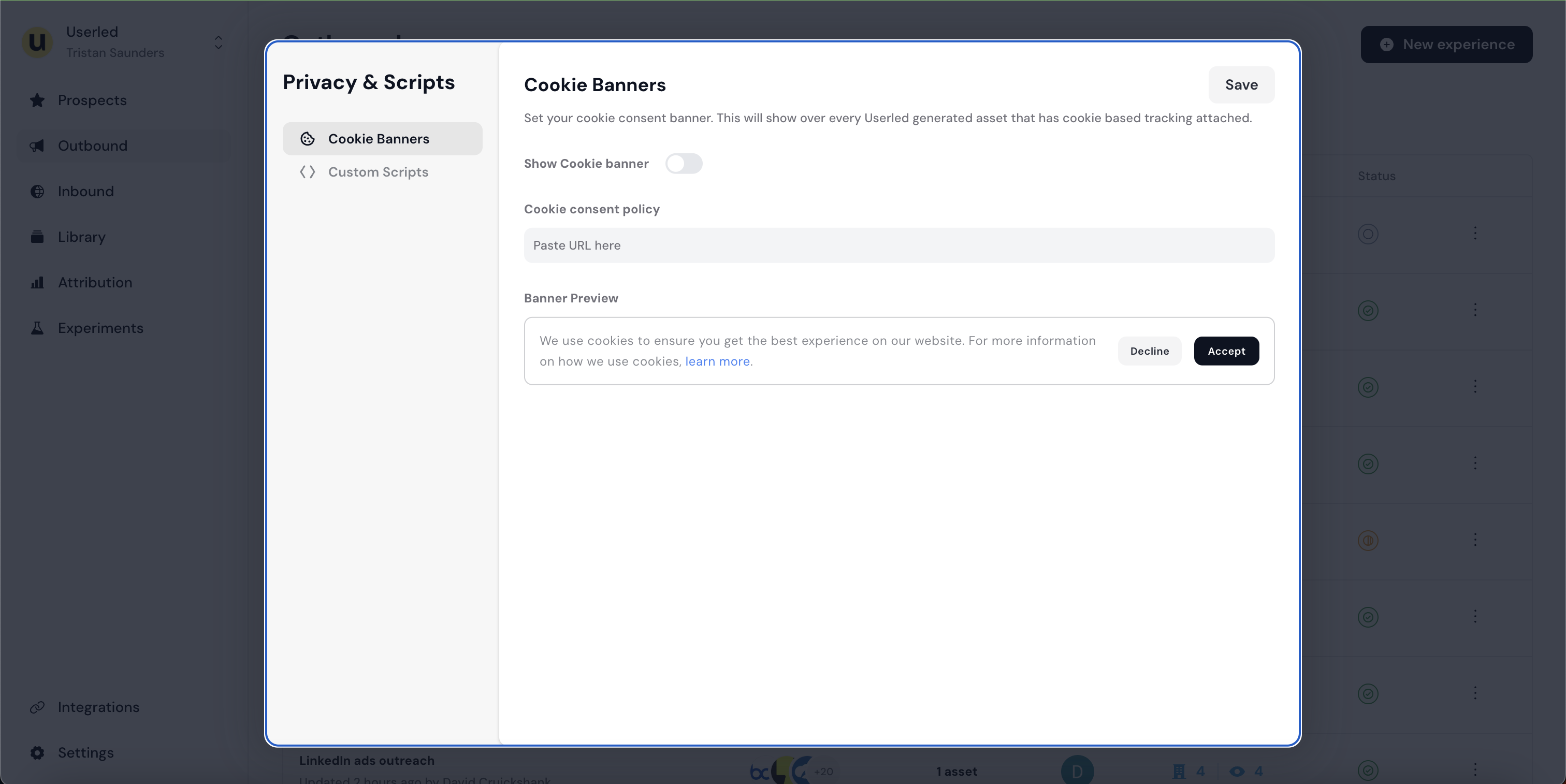
To show a consent banner on Userled landing pages built using Userled templates you can find this setting on from Settings > Privacy & Scripts > Cookie Banners.
You can leverage Userled’s native banner or use a custom banner via script injection.
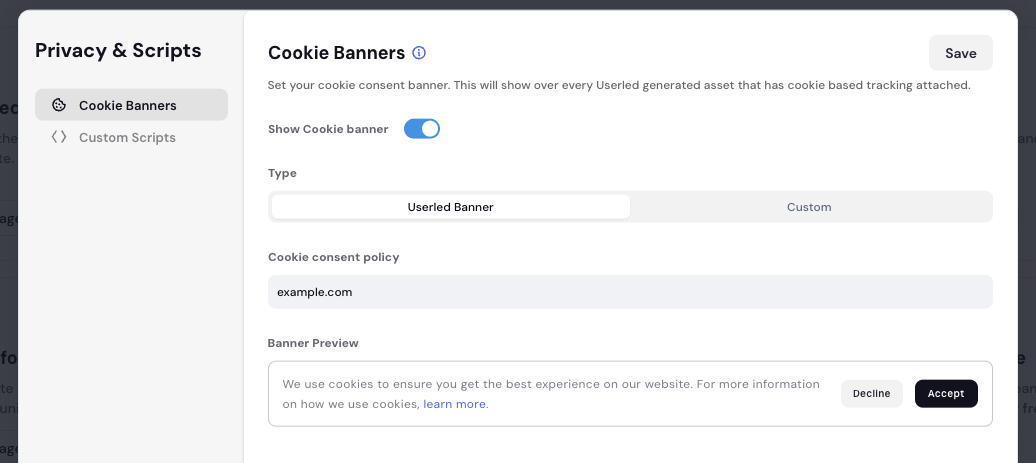
Simply toggle on "Show Cookie banner" and paste the URL to your cookie consent or privacy policy.

What does Userled track?
Visitors that fall under GDPR must explicitly accept tracking for Userled to identify and track them.
Upon accepting tracking, Userled sets cookies on the visitor's browser to associate the visitor to a known account or contact and monitor their activity (session length, time on page, etc.).
Visitors can revoke tracking at any time by opening the banner and clicking "Decline". When a visitor revokes tracking, Userled removes any cookies sent on the visitor's browser.
GDPR Compliance & Geofencing
To comply with GDPR, Userled ensures that website traffic originating from countries that fall under GDPR must opt-in to tracking. It does so by using Geofencing.
Visitors originating from countries that do not fall under GDPR will opt-in to tracking by default.
Austria
Belgium
Bulgaria
Croatia
Cyprus
Czechia (Czech Republic)
Denmark
Estonia
Finland
France
Germany
Greece
Hungary
Ireland
Italy
Latvia
Lithuania
Luxembourg
Malta
Netherlands
Poland
Portugal
Romania
Slovakia
Slovenia
Spain
Sweden
Iceland
Liechtenstein
Norway
United Kingdom
Switzerland
Andorra
Faroe Islands
Guernsey
Isle of Man
Jersey
Monaco
San Marino
This option exists should you wish to use your existing cookie provider such as iubenda.com. This provider is likely installed on your main site today.

Select the ‘Custom’ option under Type
Set the ‘Cookie consent policy’ to the URL of your choosing. This will become the destination for any user who selects ‘learn more’ which is shown on the preview
Name the provider you wish to use. (Note: this is an internal naming convention and won’t affect the configuration.)
At this stage, you should log onto your provider’s platform and find the embedding code. It may be listed under ‘installing the privacy controls’ or ‘cookie solution’. It will be a code snippet to copy to the clipboard.
Paste the script given by your provider into Userled, under the Script section shown. We allow for the script to be inserted into the Head or the Body of the page. Use the location that your provider details. If in doubt, the Body should be used.
If unsure how to proceed, please contact your Customer Success Manager or start a chat in the widget on-screen while logged into Userled.
For Userled to respect your visitors' cookie preferences, your cookie provider must notify Userled when consent decisions are made. You need to configure your provider to call these two Userled methods:
When consent is granted → Call window.Userled("grantConsent")
When consent is rejected → Call window.Userled("revokeConsent")
Every cookie consent provider offers callback functions or event listeners that fire when users make consent choices. Check your provider's documentation for terms like:
Callbacks
Event handlers
Webhooks
Custom functions
Integration hooks
Then configure those callbacks to trigger the appropriate Userled method.
<script type="text/javascript">
var _iub = _iub || [];
_iub.csConfiguration = {
"callback": {
  "onConsentGiven": () => window.Userled("grantConsent"),
  "onConsentRejected": () => window.Userled("revokeConsent"),
},  "askConsentAtCookiePolicyUpdate":true,"cookiePolicyInOtherWindow":true,"countryDetection":true,"enableLgpd":true,"enableUspr":true,"floatingPreferencesButtonDisplay":"bottom-left","lgpdAppliesGlobally":false,"perPurposeConsent":true,"siteId":123456,"usprPurposes":"s,sh,adv,sd8","whitelabel":false,"cookiePolicyId":123456,"banner":{"acceptButtonColor":"#0164FF","acceptButtonDisplay":true,"backgroundColor":"#FFFFFF","backgroundOverlay":true,"closeButtonDisplay":false,"customizeButtonColor":"#000000","customizeButtonDisplay":true,"explicitWithdrawal":true,"listPurposes":true,"logo":null,"linksColor":"#1E212A","position":"float-bottom-left","rejectButtonColor":"#212121","rejectButtonDisplay":true,"showPurposesToggles":true,"textColor":"#1E212A"}};
_iub.csLangConfiguration = {"en":{"cookiePolicyId":123456}};
</script>
<script type="text/javascript" src="//cs.iubenda.com/sync/123456.js"></script>
<script type="text/javascript" src="//cdn.iubenda.com/cs/gpp/stub.js"></script>
<script type="text/javascript" src="//cdn.iubenda.com/cs/iubenda_cs.js" charset="UTF-8" async></script>
Notice that we are accounting for both consent given and consent rejected. Your cookie provider will provide this in their documentation.
{
"callback": {
  "onConsentGiven": () => window.Userled("grantConsent"),
  "onConsentRejected": () => window.Userled("revokeConsent"),
}
Once you’ve updated your code snippet as per your providers instructions, you just need to hit Save in Userled.
Load a Userled Microsite and the changes should appear.