This guide shows how to display a unique, clickable image thumbnail in a HubSpot marketing email, pulling the image URL and landing page URL from CRM properties.

- Create or verify two single-line text properties in HubSpot (Settings > Properties > Company/Contact properties):
- Thumbnail Property: Stores the direct, public HTTPS URL to a PNG/JPG image (e.g., http://assets.userled.io/511119b7-9571-4149-8937-4186667df44c/A1rSUKcUM.png?ts=1763661220).
- Landing Page Property: Stores the destination URL (e.g., https://yourdomain.com/account123/landing).
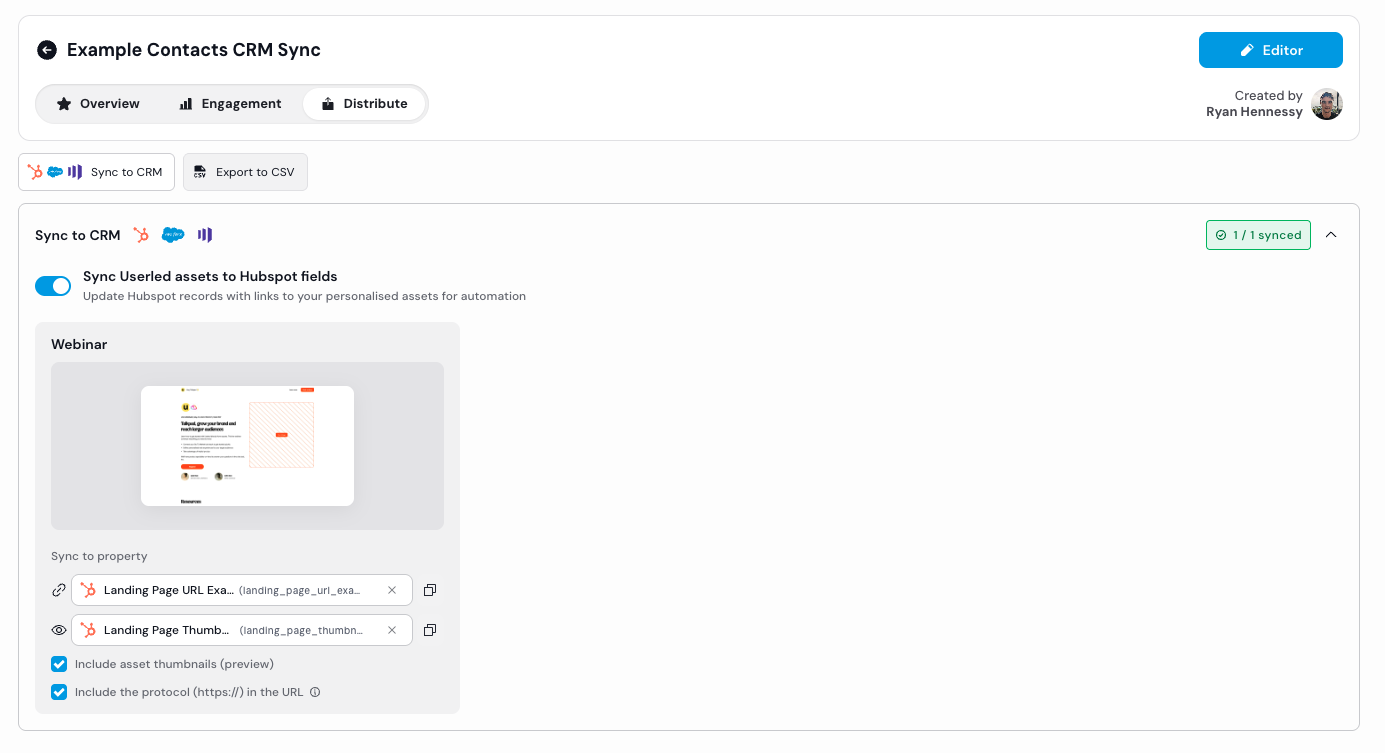
In Userled campaign, under Distribute, you can sync to your above created or existing Userled Properties in Hubspot. Sync the Landing Page URL as well as the Thumbnail URL.

Use a marketing email (Marketing > Email > Create email).
- In the email editor, add a Custom HTML module (drag-and-drop: sidebar > Custom HTML)
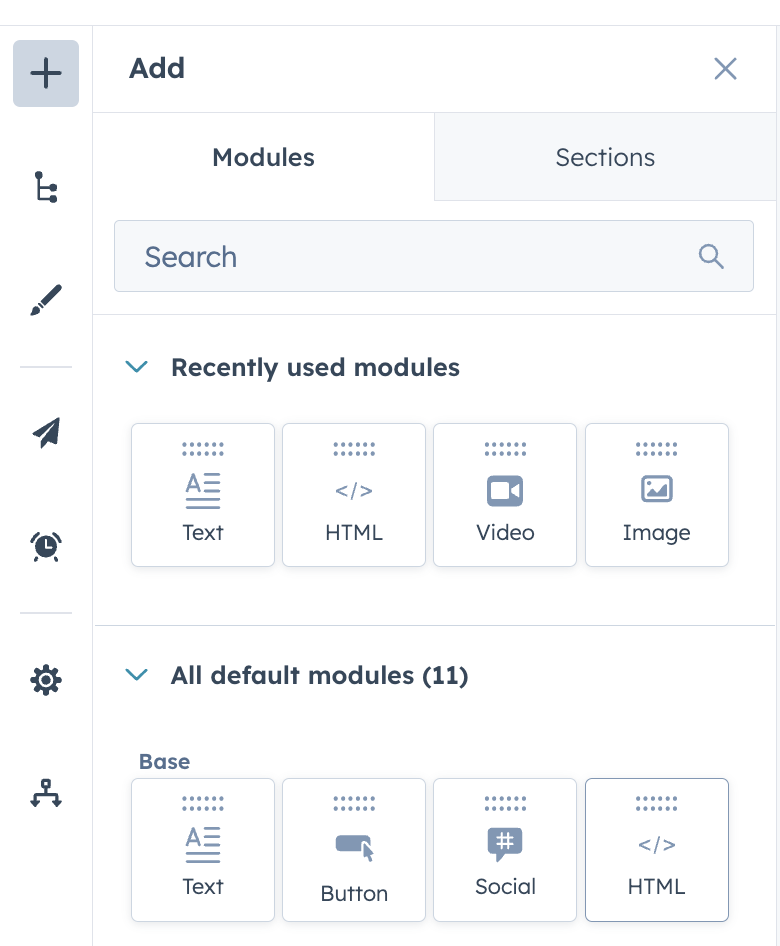
- Click the code view icon {} and insert this snippet where you want the image:
Remember to update the below property names to what you have in HubSpot
<a href="{{contact.YOUR_LANDING_PAGE_PROPERTY}}" target="_blank" rel="noopener">
  <img src="{{contact.YOUR_THUMBNAIL_PROPERTY}}" alt="Personalized Thumbnail" width="300" height="200" style="max-width: 100%; height: auto; border: 0; display: block;">
</a> - Replace [YOUR_LANDING_PAGE_PROPERTY] with your property's token (e.g., {{contact.userled_landing_page_url}}). Check exact syntax via the personalisation token picker (toolbar icon > Company properties > search your property).
- Replace [YOUR_THUMBNAIL_PROPERTY] similarly (e.g., {{contact.userled_thumbnail}}).
- target="_blank" opens the link in a new tab; rel="noopener" improves security.
Optional:
Adjust the width and height for your thumbnail shown in the email: width="300" height="200"
Now save the module.
This creates a clickable image: clicking the thumbnail (unique per account) redirects to the account's landing page URL.
- Preview: In the editor, go to Actions > Preview > Select specific contacts from different companies. Verify the image loads uniquely and the link points to the correct URL (hover to check href).
- Test Send: Actions > Send email preview to test contacts (one per company). Open in various inboxes (Gmail, Outlook)—enable "display images" if needed. Click the image to confirm it navigates correctly.
- Scale Test: Create a test list of 5-10 contacts across accounts, send a full test campaign, and review analytics for opens/clicks.
- Debug Common Issues:
Image not showing: URL invalid/public issue—test in incognito browser.
Link not working: Token unresolved (check associations) or relative URL (must be absolute HTTPS).
Blank tokens for test contact? Make sure these are populated
- Performance: Compress images (<50KB) and host centrally (HubSpot Files or CDN) to avoid spam filters/slow loads. Limit to 1-2 personalized images per email.
- Accessibility/Compliance: Use descriptive alt text (e.g., "Thumbnail for [Company Name]" via another token). Ensure links comply with CAN-SPAM/GDPR—include unsubscribe options.