You can load a LinkedIn page that you'd like to send a Userled asset to. The Sales Plugin will automatically load the target’s URL from the browser window.
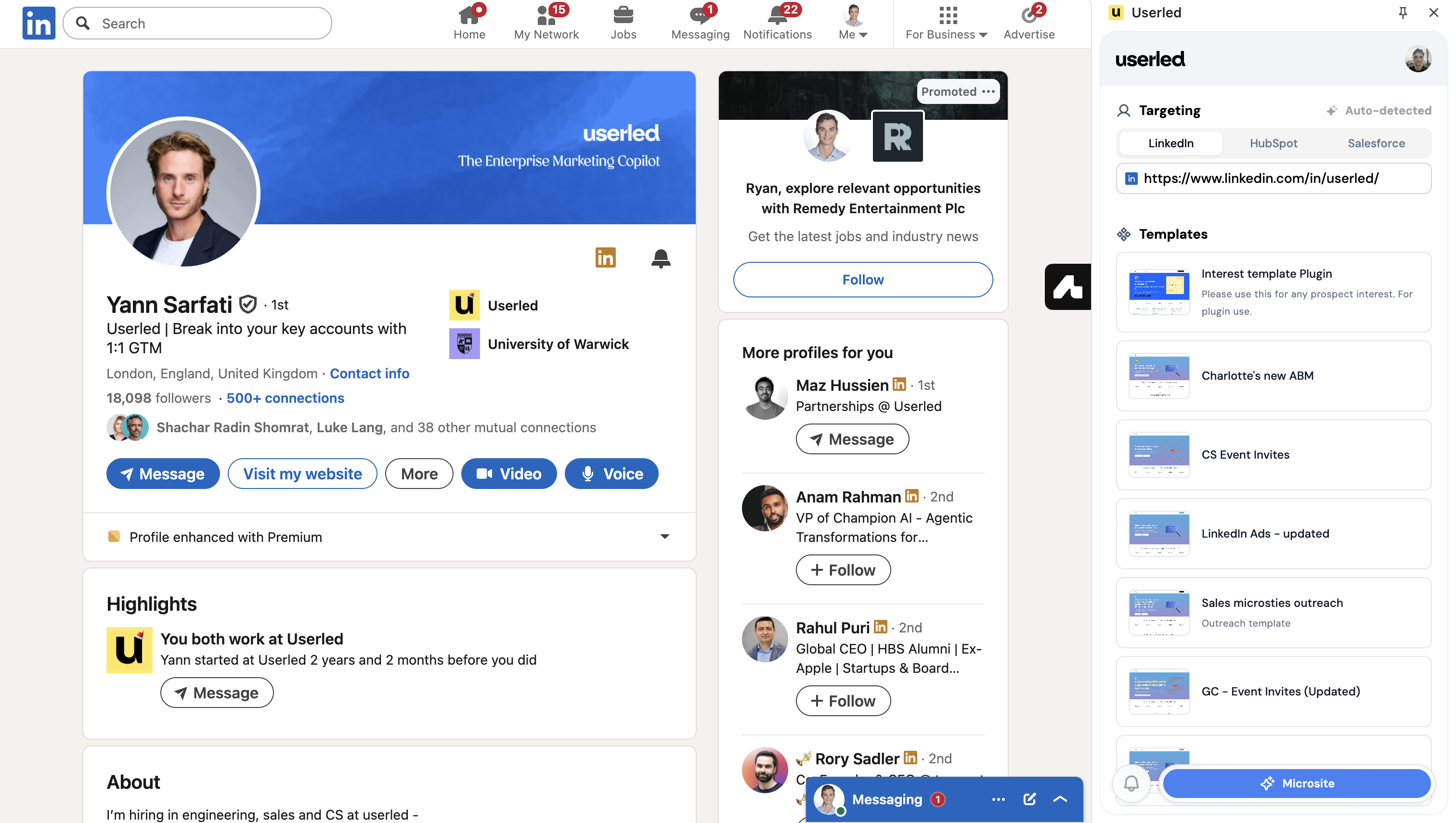
You’ll then select the template you wish to use and select Generate Microsite.
Optional: You can make edits to the template you use to further customise the experience in the next stage.
Once the microsite is generated, you will see in the Sales Plugin that it’s ready to share with your target prospect.
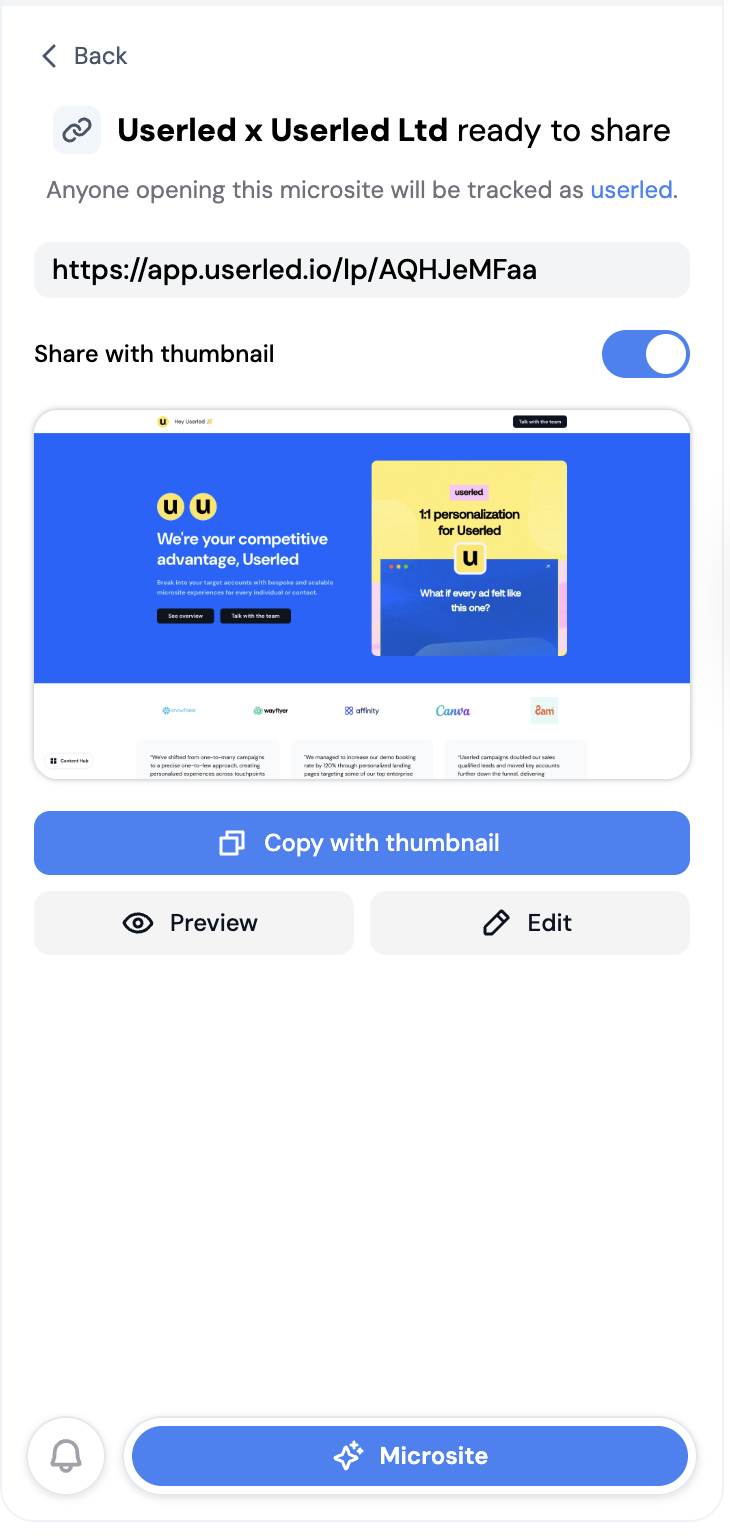
If you are messaging on LinkedIn, then copy the URL without the thumbnail, as LinkedIn will automatically show the preview once sent.
For other outreach, such as email, copy the URL with thumbnail option to improve click-through rates even further.
Select the Preview button to open the asset you’ve made safely, without the tracking, so that you can inspect the page looks correct.
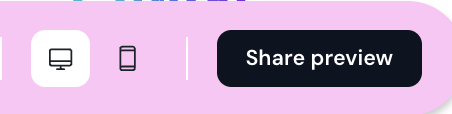
You can toggle between desktop and mobile views, and copy the share preview link to the Clipboard.
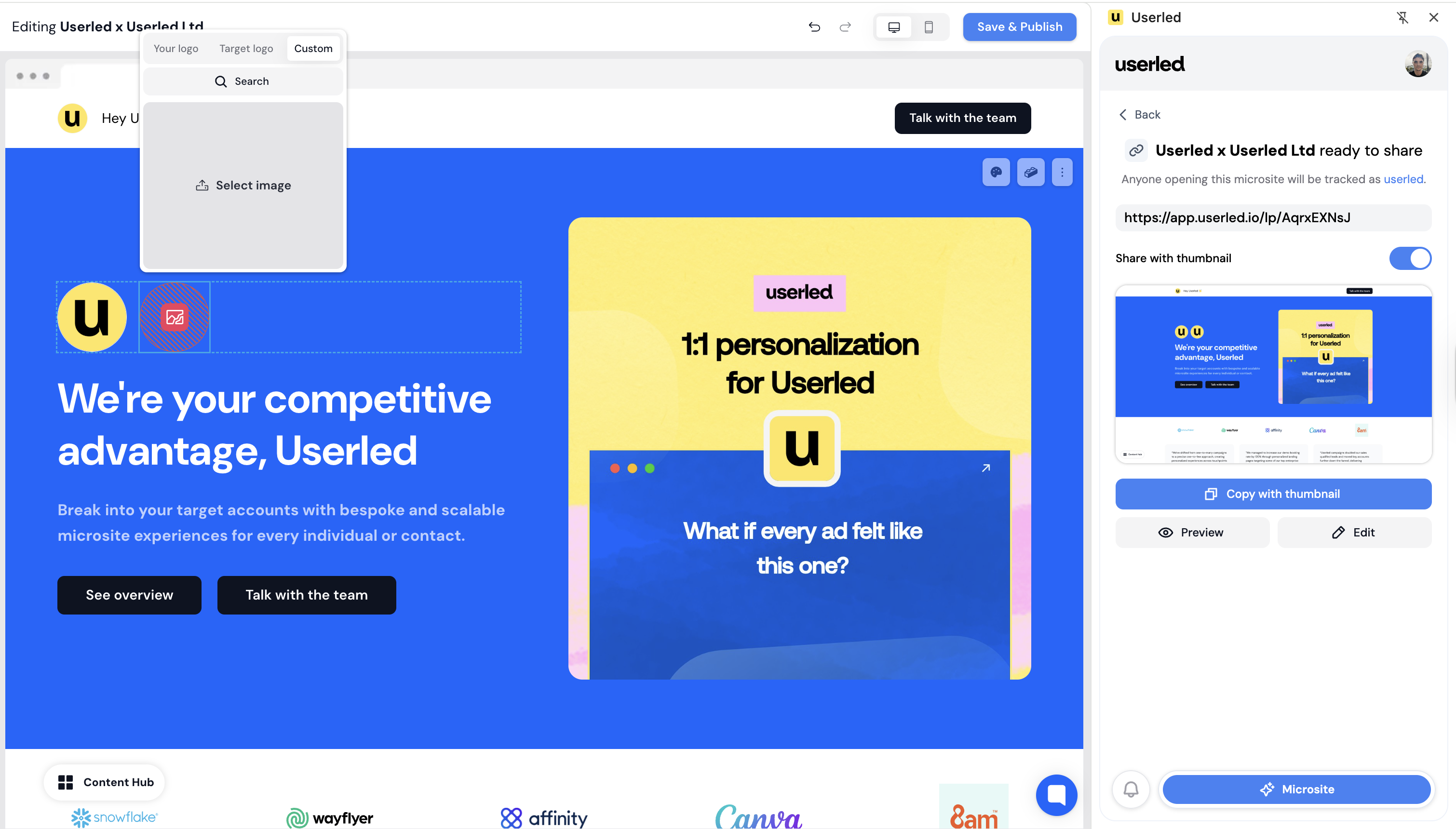
Once the site is generated, you can edit the asset if you wish. Click Edit, and in the new tab that opens, select the container you want to change.
This can be an image or text, but not the page's structure.