Note: This guide uses Claude as the example, but the same approach works with any AI assistant that supports custom MCP connectors (such as ChatGPT, Cursor, or others). The exact menu names differ per tool, but the steps are the same: add your Userled MCP server URL as a custom connector, then sign in with your Userled account.
Userled is not listed in Claude's built-in connector library yet. You connect it by adding it as a custom connector using your Userled MCP server URL. Searching or browsing for "Userled" in Claude will not find it.
You can connect Userled in two ways:
For your whole team — a Claude workspace admin adds it once in Organisation settings so it's available to everyone.
Just for you — any user can add it from their own Customise settings.
Each person signs in with their own Userled account, so they only see the data they already have access to in Userled.

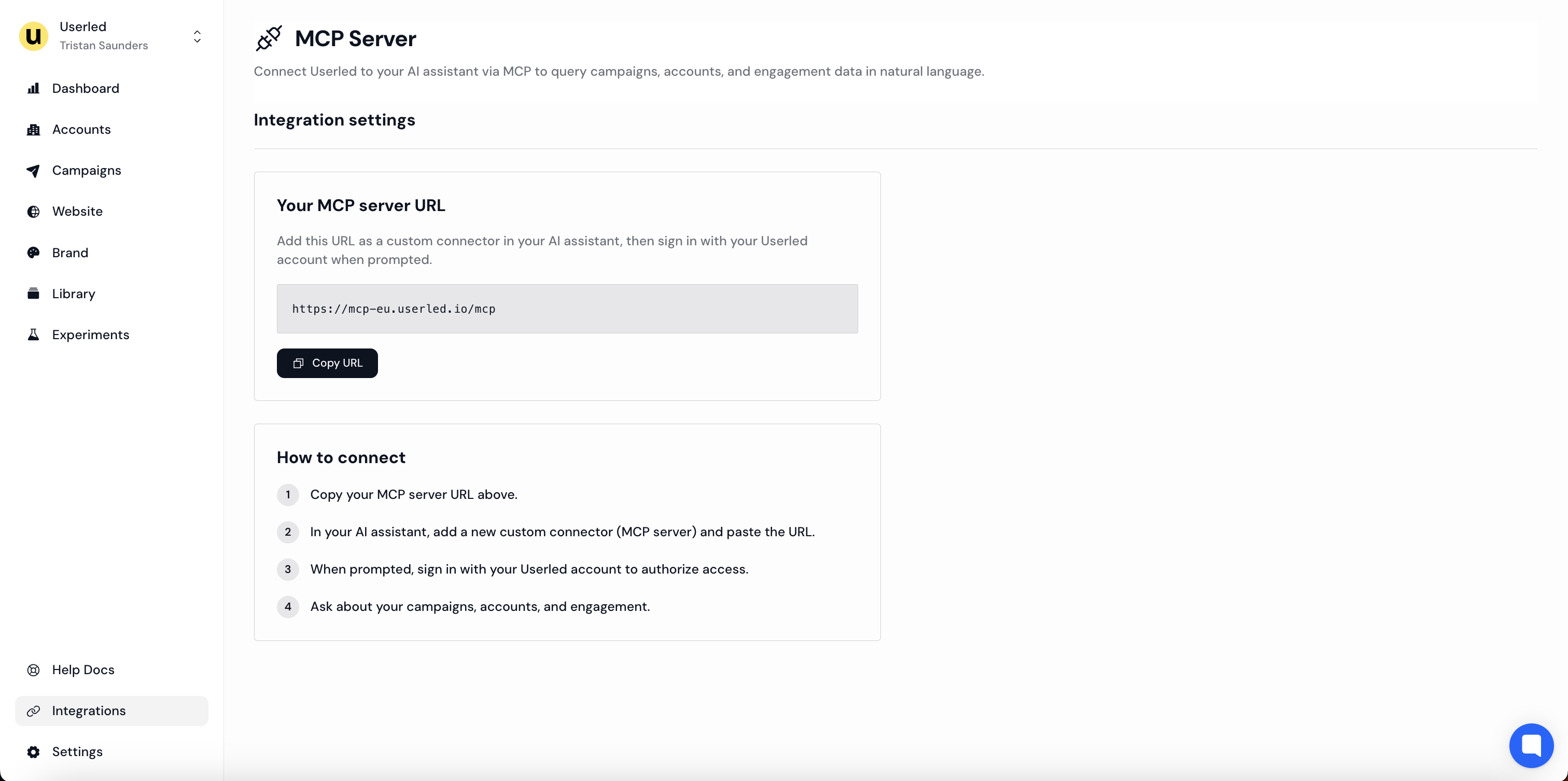
1. In Userled, go to Integrations in the left sidebar
2. Open the MCP Server page
3. Under Your MCP server URL, click Copy URL

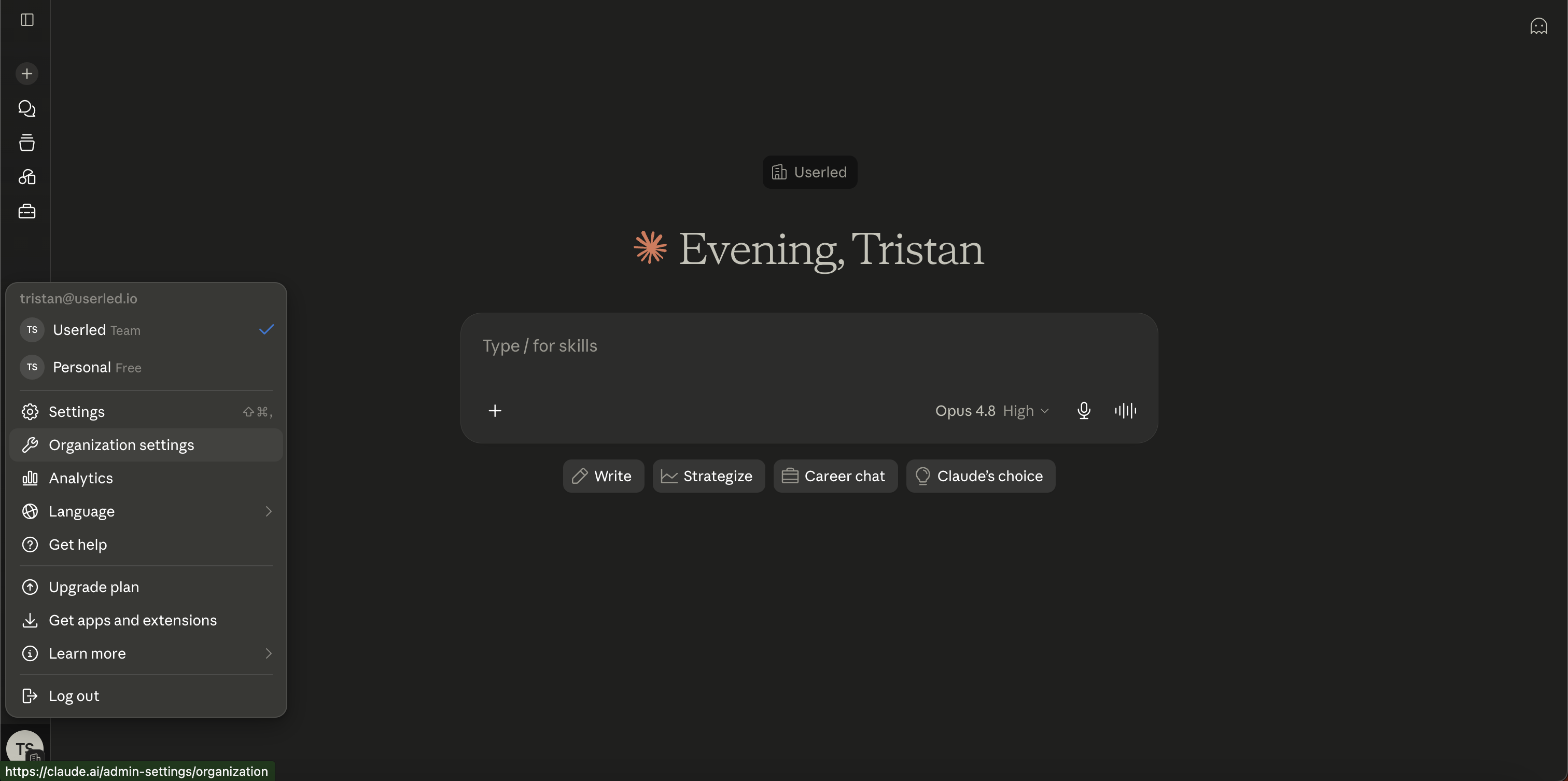
Use this if you're a Claude workspace admin and want everyone on your team to have Userled available.
1. Click your profile (bottom-left) and select Organization settings
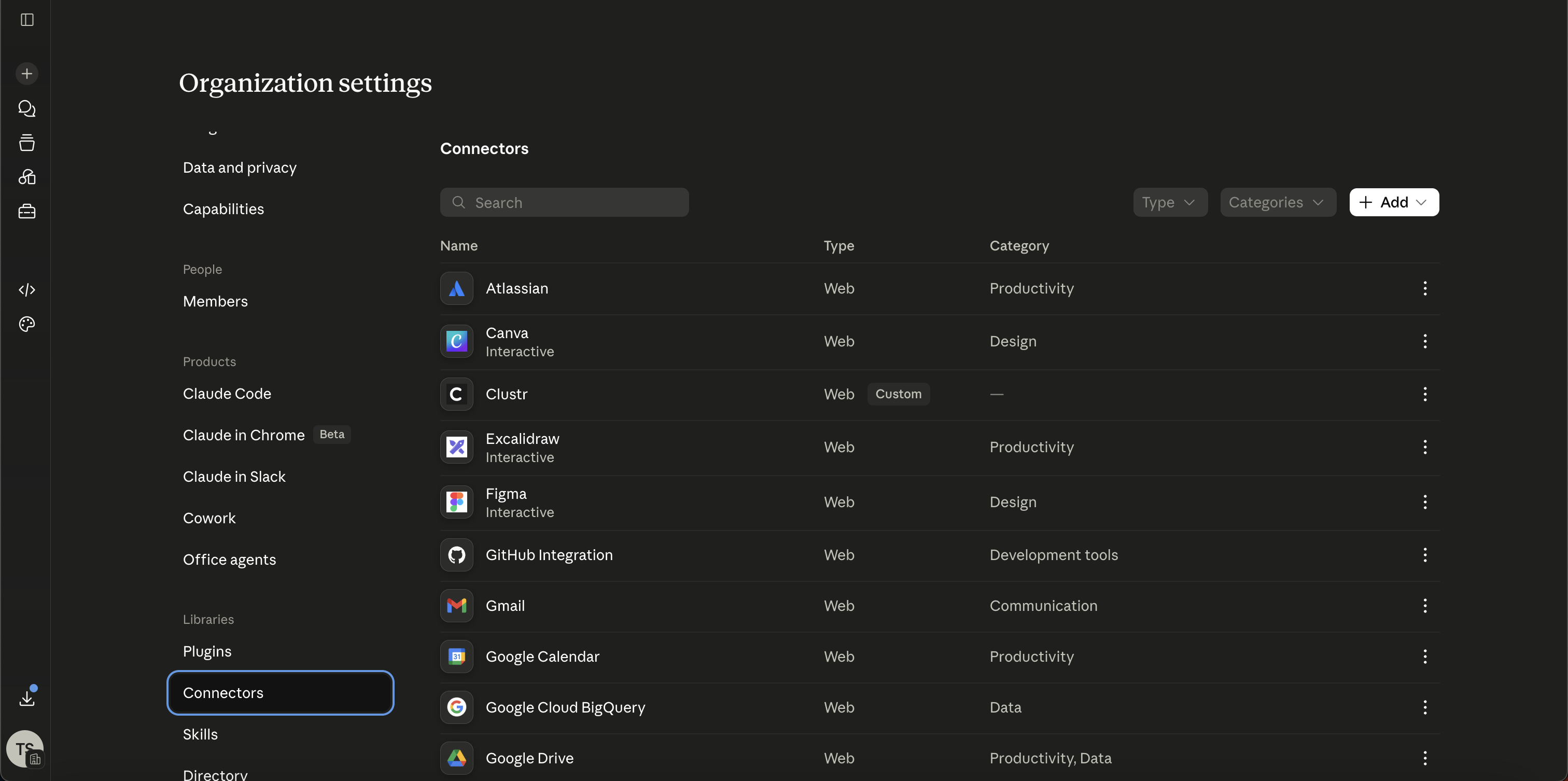
2. Under Libraries, open Connectors
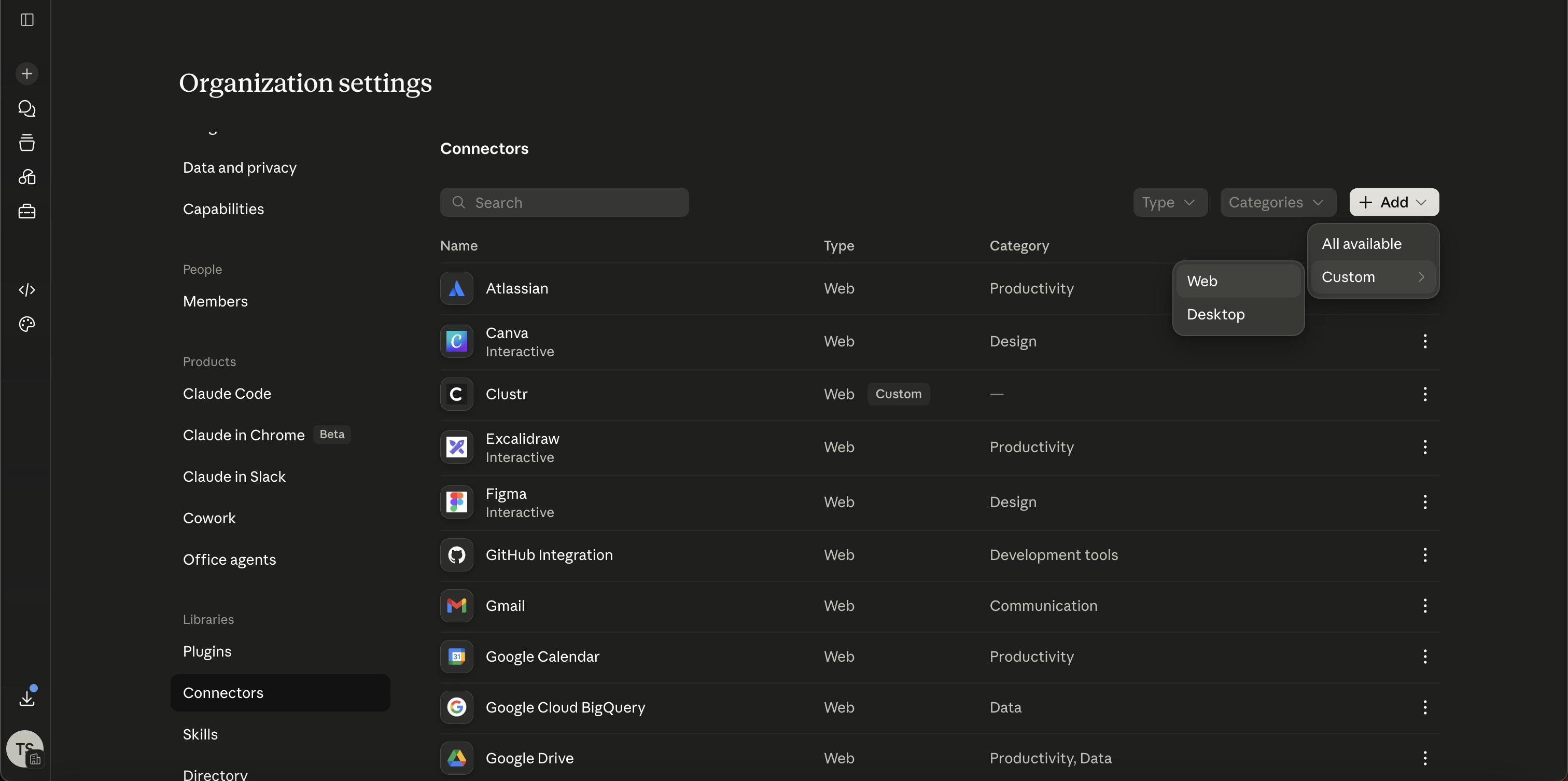
3. Click + Add, hover Custom, then choose Web
4. In the Add custom connector dialog:
Name: Userled
URL: paste your Userled MCP server URL
Leave Advanced settings (OAuth Client ID / Secret) empty
Under How your team connects, keep Individual sign-in selected so each person authenticates with their own Userled account
5. Click Add
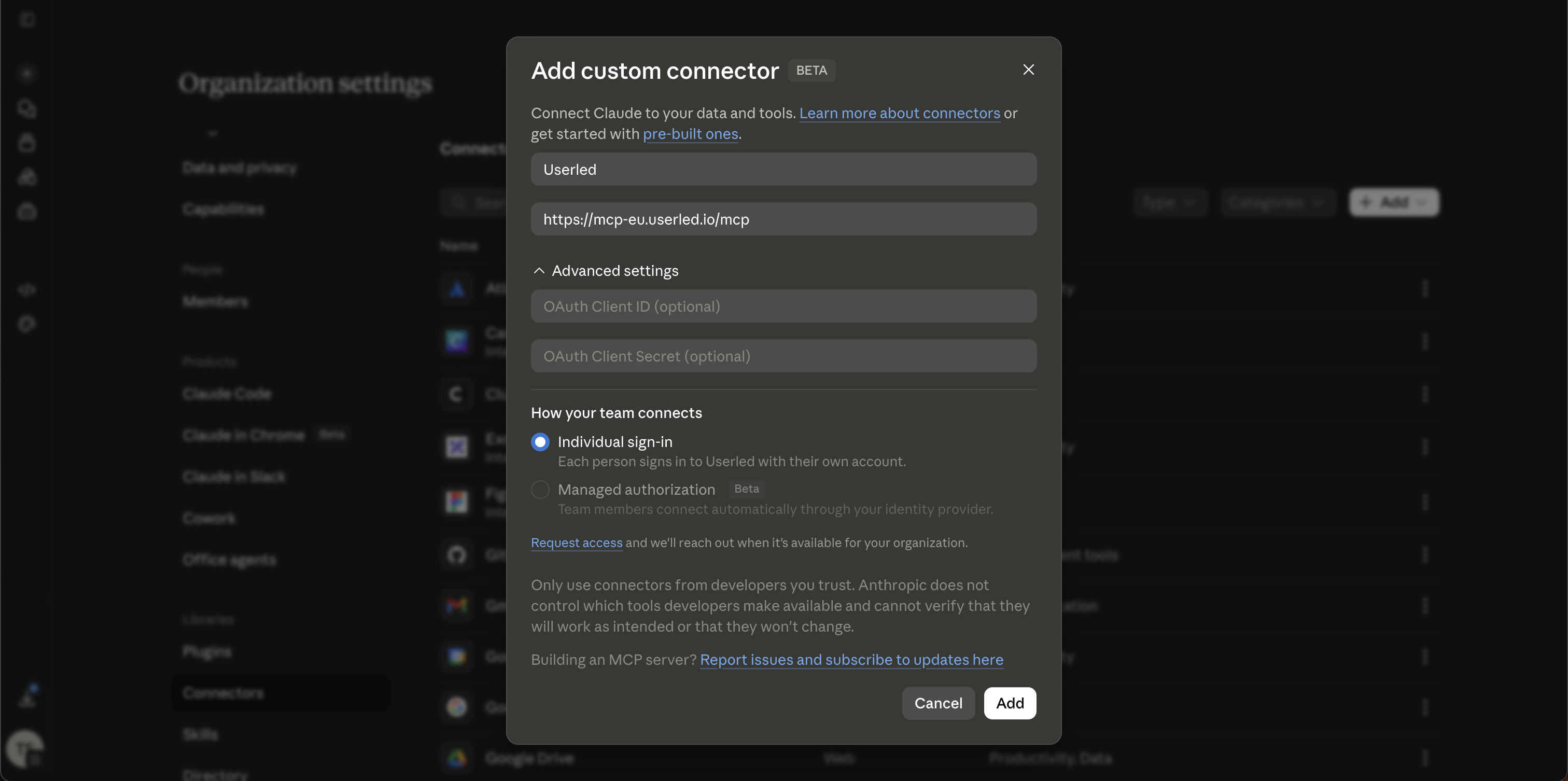
Userled now appears in your team's connector list. Each team member completes the sign-in step below the first time they use it.
Use this if you only want Userled in your own Claude account.
1. Go to Customize > Connectors
2. Click the + button and select Add custom connector
3. Enter Userled as the name and paste your MCP server URL
4. Click Add
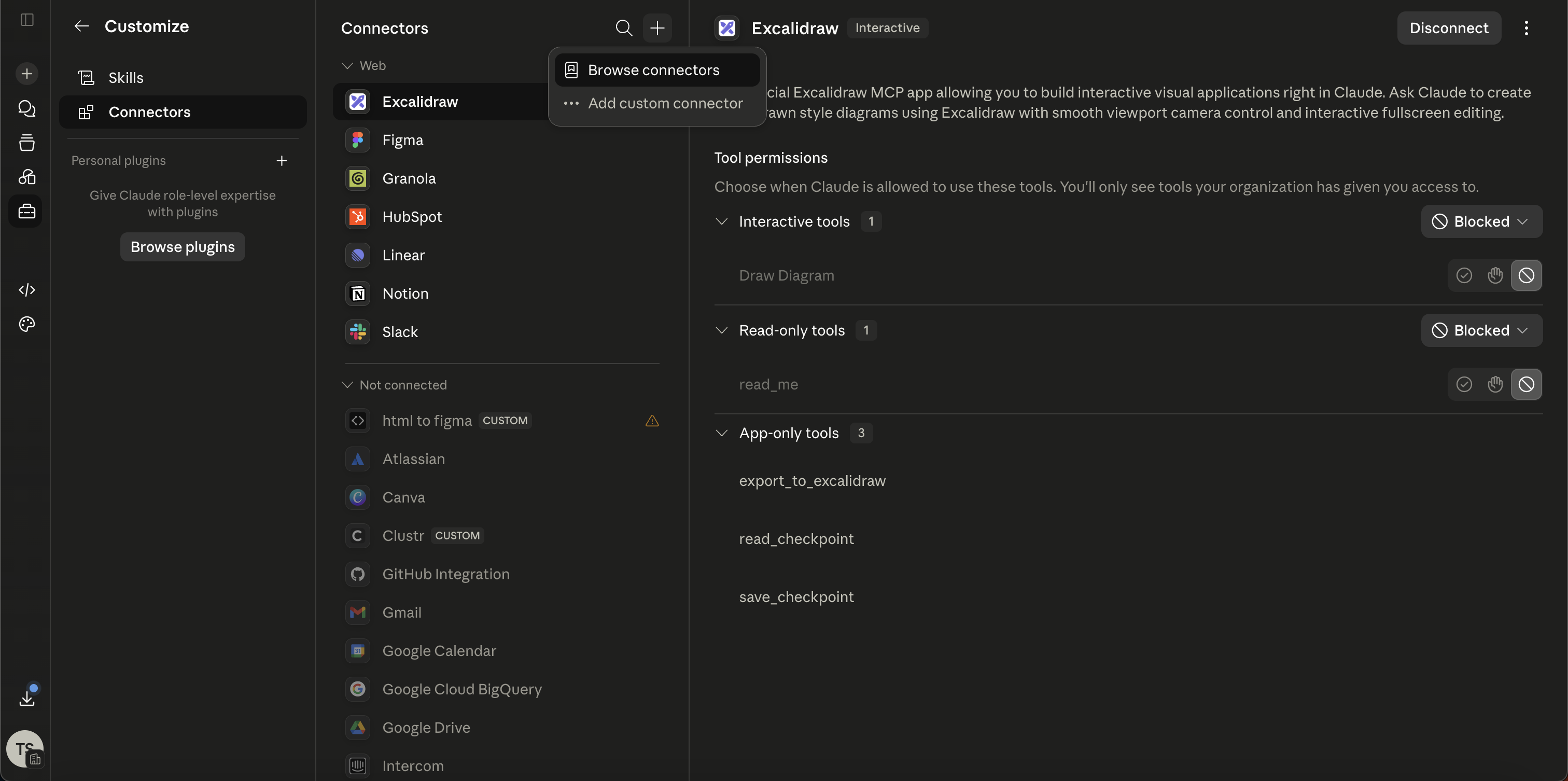
The first time you use the connector, Claude will prompt you to sign in. Sign in with your Userled account to authorize access. Once authorized, the Userled tools are available in your chats.
Ask Claude about your data in plain language, for example:
- "Which accounts engaged with my Q3 campaign last week?"
- "Show me the top 10 accounts by engagement this month."
- "What's the status of my live campaigns?"
I pasted the URL into Claude but Userled didn't appear.
Userled isn't in Claude's connector library yet, so it won't show up when browsing or searching. You must add it as a custom connector (see Option A or B above) rather than expecting it to appear automatically.
The connector was added but won't connect.
Check that you used the URL for your region, copied directly from your Userled Integrations > MCP Server page (EU and US use different URLs). Also confirm you completed the sign-in step to authorize access.
I can't see Organization settings.
That section is admin-only. If you're not a Claude workspace admin, ask your admin to add Userled for the team (Option A), or add it for yourself via Customize > Connectors (Option B).
Reach out via the support widget while logged into Userled, or contact your CSM.