If your marketing team runs on Pardot (Marketing Cloud Account Engagement), Userled fits straight into the way you already work. Userled builds a personalised landing page for every prospect or account, writes its link to the prospect's record, and you send it from Pardot list emails and Engagement Studio programs like any other prospect field. Every visit then flows back so you can score, segment and follow up.
There is nothing to install in Pardot. Userled connects to the Salesforce org that Pardot already syncs with, and Pardot's own Salesforce connector does the rest.
Choose your prospects. Pick the Leads, Contacts or Accounts you want to target in Userled, straight from Salesforce.
Userled builds the pages. Each prospect or account gets its own personalised landing page and a thumbnail preview image.
Links sync to Salesforce. Userled writes the page URL and thumbnail URL to custom fields on the Lead or Contact record.
Pardot picks them up. Those Salesforce fields are mapped to Pardot prospect fields, so every prospect carries their own Userled link.
Send and measure. Drop the link into a Pardot email with a merge field. Userled tracks every visit and pushes engagement back to Salesforce, where Pardot can use it in scoring and automation.
The same records go by different names in each tool. Here is how they line up:
Prospect is a Salesforce Lead or Contact, and a target in Userled.
Prospect account is a Salesforce Account, and an account target in Userled.
Dynamic list or segment is a Salesforce List View or Report, and a target list in Userled.
Custom prospect field is a custom field on the Lead or Contact, and the field Userled syncs your page link to.
HML merge field (for example {{Recipient.Email}}) is how you put the Userled link, and the recipient's details, into a Pardot email.
List email or Engagement Studio program is how the page gets distributed. In Userled this is called distribution.
Your Pardot business unit is connected to Salesforce through the standard Salesforce connector, and prospects are syncing to Leads and Contacts.
You have a Salesforce admin (to connect Userled and create two fields) and a Pardot admin (to map those fields to prospect fields). Often this is the same person.
Userled reads your prospects and writes page links through your Salesforce org. You can connect with a normal Salesforce user who has the right permissions, or create a dedicated Userled integration user. The full user and permission set setup is in our Salesforce article.
Read access to all fields on Account, Contact and Lead. Any field can be used as a personalisation variable on your pages, including the Pardot fields that sync to Salesforce.
Edit access only to the Userled fields you create in Step 3. Userled never creates fields or objects in your org, and only writes to fields you choose in the sync settings.
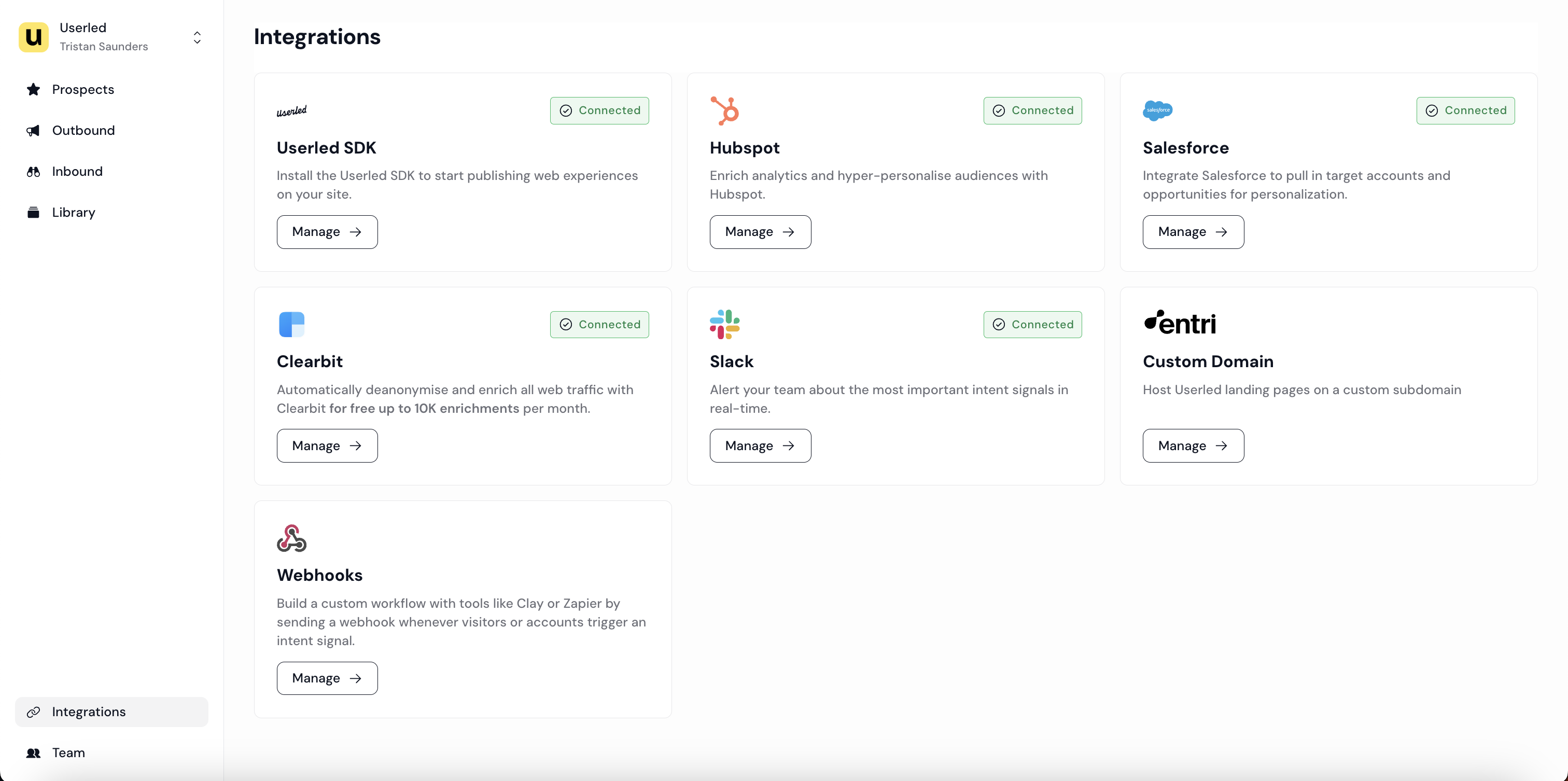
Go to Integrations in Userled and select Salesforce.
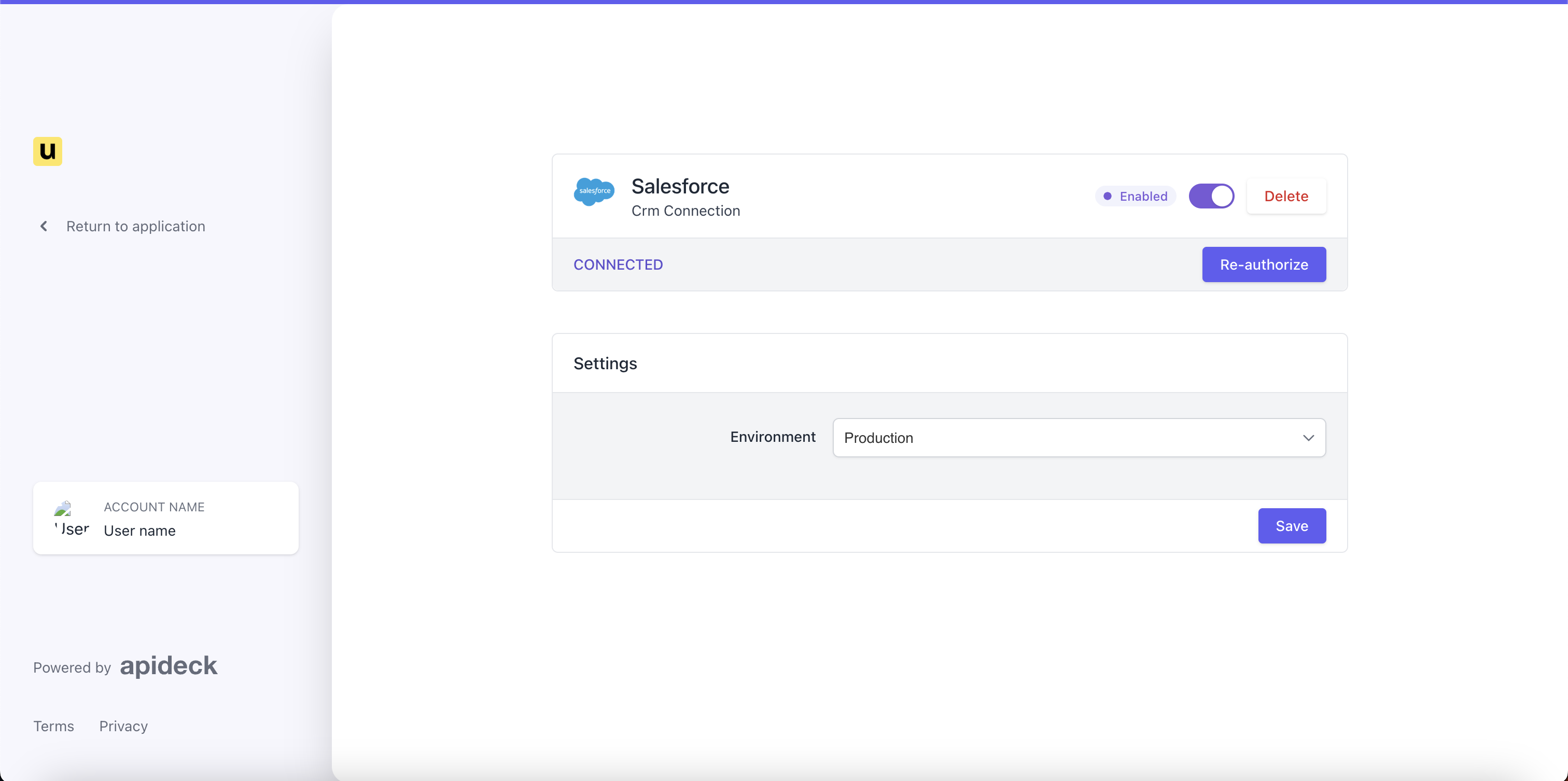
Click Authorise, log in to Salesforce and approve the connection.
Back in your Salesforce integration settings, check the status shows 🟢 Connected.
When you create a campaign in Userled, choose Salesforce as the source. You can target:
Leads or Contacts for one page per prospect.
Accounts for one page per company, shared by everyone at that account.
List Views or Reports to bring in an existing segment.
Userled can't read Pardot dynamic lists directly, but the Pardot fields that sync to Salesforce (such as Pardot Score and Pardot Grade) live on the Lead and Contact. Build a Salesforce List View or Report on those fields and pick it in Userled to target the same prospects.
To target the members of a Salesforce Campaign, use a List View or Report filtered on that campaign's membership.
Read more about defining your audience.
Create two custom fields on both the Lead and Contact objects (and on Account too, if your sales team wants to see the account page):
Userled Landing Page URL stores the prospect's personalised page link.
Userled Thumbnail URL stores a preview image of that page, for use in emails.
Use the URL type, or Text (255) for long links. Give the user you connected to Userled edit access to these fields (field-level security), otherwise they won't appear in Userled's field picker.
Go to Account Engagement Settings, then Object and Field Configuration, then Prospect Fields.
Add a custom field for each Userled field and map it to the matching Salesforce field.
Set the sync behaviour to Use Salesforce's value, so the link Userled writes is always the one Pardot sends.
Note each field's ID (for example Userled_Landing_Page_URL). You'll use it in your merge fields.
Build your campaign's pages in Userled as usual.
Open the campaign's Distribute tab and choose Sync to CRM.
Select your Userled Landing Page URL field, and turn on thumbnails to fill the Userled Thumbnail URL field.
Click Save and sync. Links start appearing on your Salesforce records shortly, and reach Pardot on its next sync.
Pardot emails prospects, not accounts. When your campaign targets accounts, choose to sync the link to the Contacts at each account. Every prospect at that company then carries the shared account page in their Pardot record.
Syncing keeps running on its own. When you add new prospects to the campaign, their pages are built and their links are written to Salesforce automatically, ready for your next Pardot send.
More detail on sync options: Exporting assets to your CRM.
In a Pardot email template, list email or Engagement Studio program, use the prospect field as the link. Add the recipient's email in the ul_e parameter so Userled knows exactly who clicked:
{{Recipient.Userled_Landing_Page_URL}}?ul_e={{Recipient.Email}}Replace Userled_Landing_Page_URL with your Pardot field ID. If your page link already contains a ?, use &ul_e= instead. You can also add ul_fn={{Recipient.FirstName}} and ul_ln={{Recipient.LastName}}.
To show a preview of the page, add this in the email's HTML editor:
<a href="{{Recipient.Userled_Landing_Page_URL}}?ul_e={{Recipient.Email}}">
  <img src="{{Recipient.Userled_Thumbnail_URL}}" alt="Your personalised page" width="560">
</a>Add a rule before your send step that checks Userled Landing Page URL is not empty. Prospects only get the email once their page is ready, and nobody receives a blank link.
Always send a test email to yourself first and click the link, to check the merge fields fill in.
When a prospect clicks through, Userled identifies them from the ul_e parameter and tracks what they view, on the page and across your website. You see it in Userled's campaign and account analytics, and your sales team can get real-time alerts.
To act on that engagement in Pardot, turn on CRM data enrichment. Userled writes engagement data (sessions, last activity, engagement level, form fills, meetings booked) to Contact and Account fields every day. Map the Contact fields to Pardot prospect fields and use them in:
Scoring and automation rules, for example adding points when engagement level is high.
Dynamic lists, for example prospects who visited their page in the last 7 days.
Engagement Studio branches, for example a follow-up for prospects who visited and a reminder for those who didn't.
Note: CRM data enrichment writes to Contacts and Accounts. It does not write to Leads.
Read more about the Identity Layer, which works out who is engaging (spoiler, it's cookieless).
My Userled field isn't in the field picker. The user you connected doesn't have edit access to that field. Update field-level security in Salesforce, then refresh Userled.
The link is in Salesforce but not on the Pardot prospect. Check that the Pardot prospect field is mapped to the right Salesforce field and set to Use Salesforce's value, and allow time for Pardot's next sync. For account campaigns, check you synced to Contacts. A prospect who is still a Lead won't receive an account-level link.
The email shows the merge field text instead of a link. The field ID in the merge field doesn't match your Pardot field. Copy it from Pardot's merge field picker.
Some prospects are missing from Userled. Userled targets records in Salesforce. Pardot prospects that haven't synced to a Lead or Contact need to sync first.
Salesforce couldn't complete the connection. Your Salesforce settings may only let admins approve connected apps. Ask your Salesforce admin to connect Userled.
💡 Note The Salesforce integration, which powers the Pardot workflow, is available on our Paid plans.
If you have any questions, we're here to help! Contact us any time through your dedicated Slack channel or at [email protected].