The Userled Salesforce Integration helps your teams create target lists of key accounts and contacts, create personalised experiences at scale using any CRM object property as dynamic variables, identify prospects and track website activity.
Target Lists: Create or import and manage lists of key accounts and contacts.
CRM Distribution: Sync personalised experiences with your CRM.
Prospect Identification: Identify prospects who engage with personalised content.
Website Activity Tracking: Monitor and track prospect activity in real-time.
Ensure you have admin privileges in Salesforce or ask your admin to help you with these next steps.
Scopes determine the permissions our app has to access data or perform actions in Salesforce. When connecting Userled to your Salesforce instance, you must approve the scopes our app requests. We require as few scopes as possible for our app's functionality.
Below are the scopes we require:
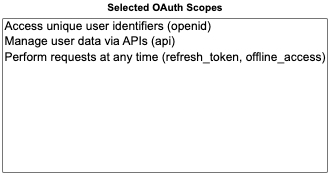
You can either connect a normal user to SFDC, provided they have the right permission sets, or you can created a dedicate Salesforce integration user for Userled.
If you prefer to create a dedicated integration user, follow these steps.
Create a dedicated integration user with the following properties
LastName - Userled
Alias - Userled
Email - [email protected]
username - [email protected]
nickname - userled-integration
role - CEO
as high as possible because we don’t want any restrictions here
license - Salesforce
profile - Minimum access - Salesforce
email encoding - Unicode-utf8 (default)
locale settings (leave as default)
Receive Approval Request Emails - never
[x] Generate new password and notify user immediately - ticked
Create a dedicated permission set for your integration user:
Label = “Userled integration”
API name → automatically populated from label
Description: “This is all the permissions needed for Userled to properly interact with your Salesforce system via the API.”
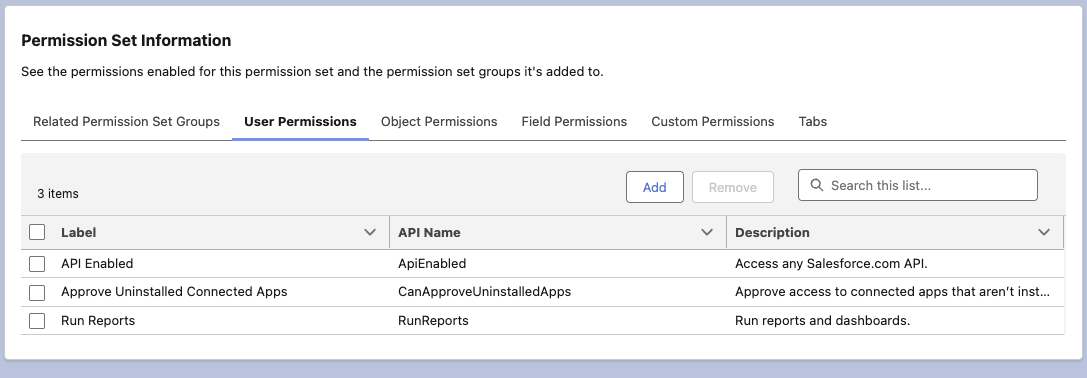
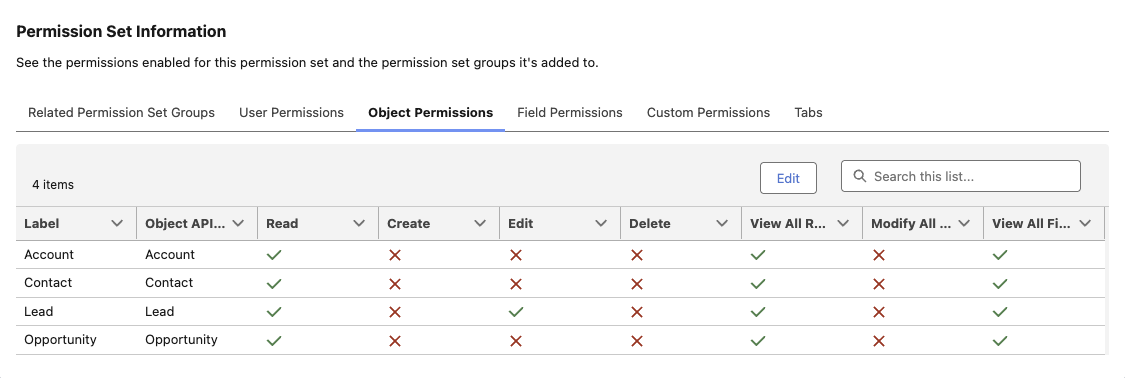
For details of field access via permission sets (Permission Set Information) please refer to the breakdown below.
User Permissions
Object Permissions
Assign the Permission Set to your integration user.
Read Access
Userled allows any CRM field to be used as a personalisation variable in assets. Read access across all fields on Account, Contact, and Lead is therefore required — the specific fields used will depend on your team's configuration within Userled.
Write Access (optional)
Write access is only required if your team chooses to configure CRM distribution — pushing Userled asset links and engagement activity back to Salesforce records. This is not enabled by default.
Userled does not create any fields or objects in your Salesforce org. Any custom properties written to must be created by your team in advance. Userled will only write to fields explicitly configured within the integration settings.
Navigate to the integrations section within your Userled dashboard.
Select 'Salesforce' from the list of available integrations.
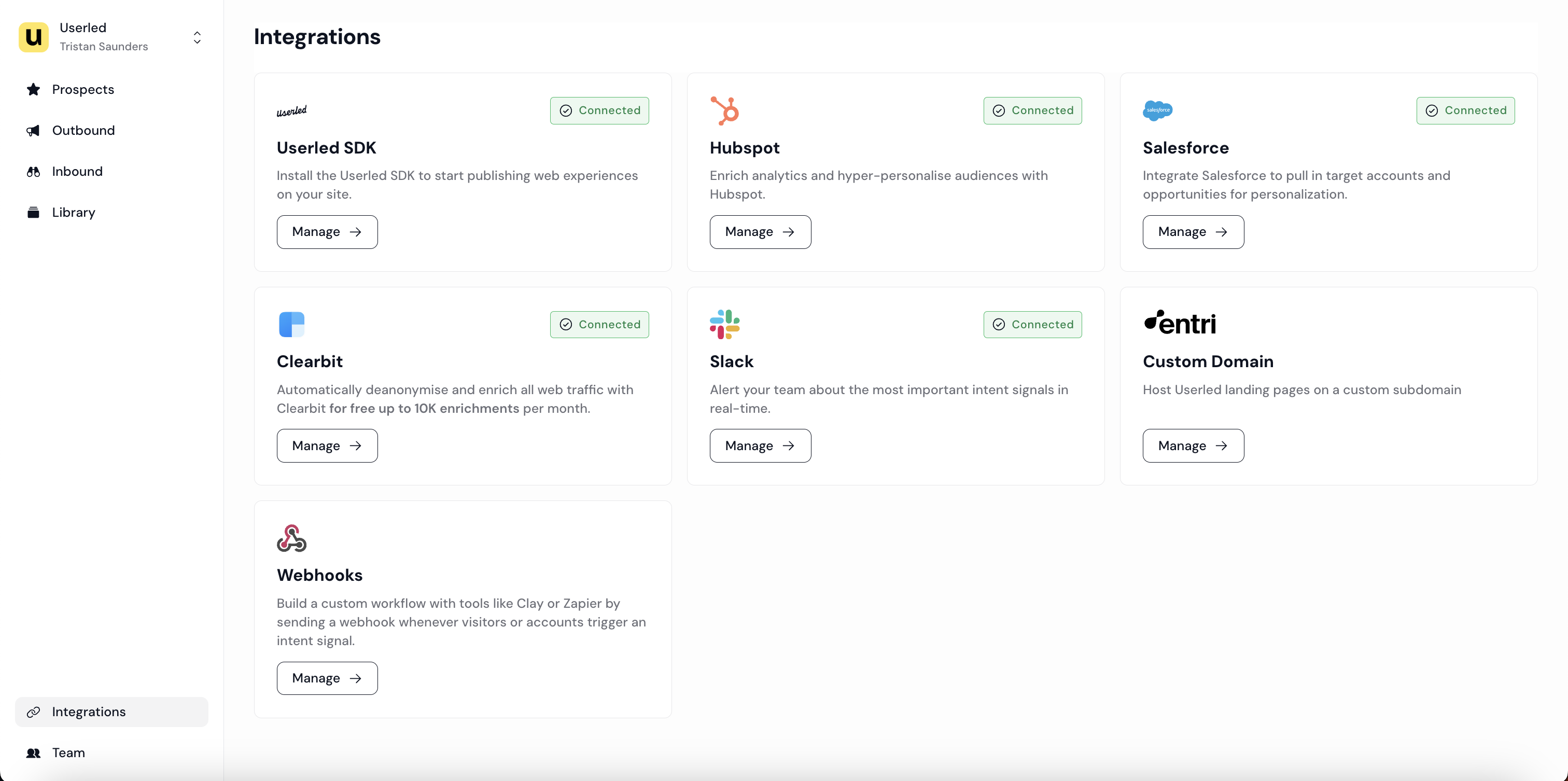
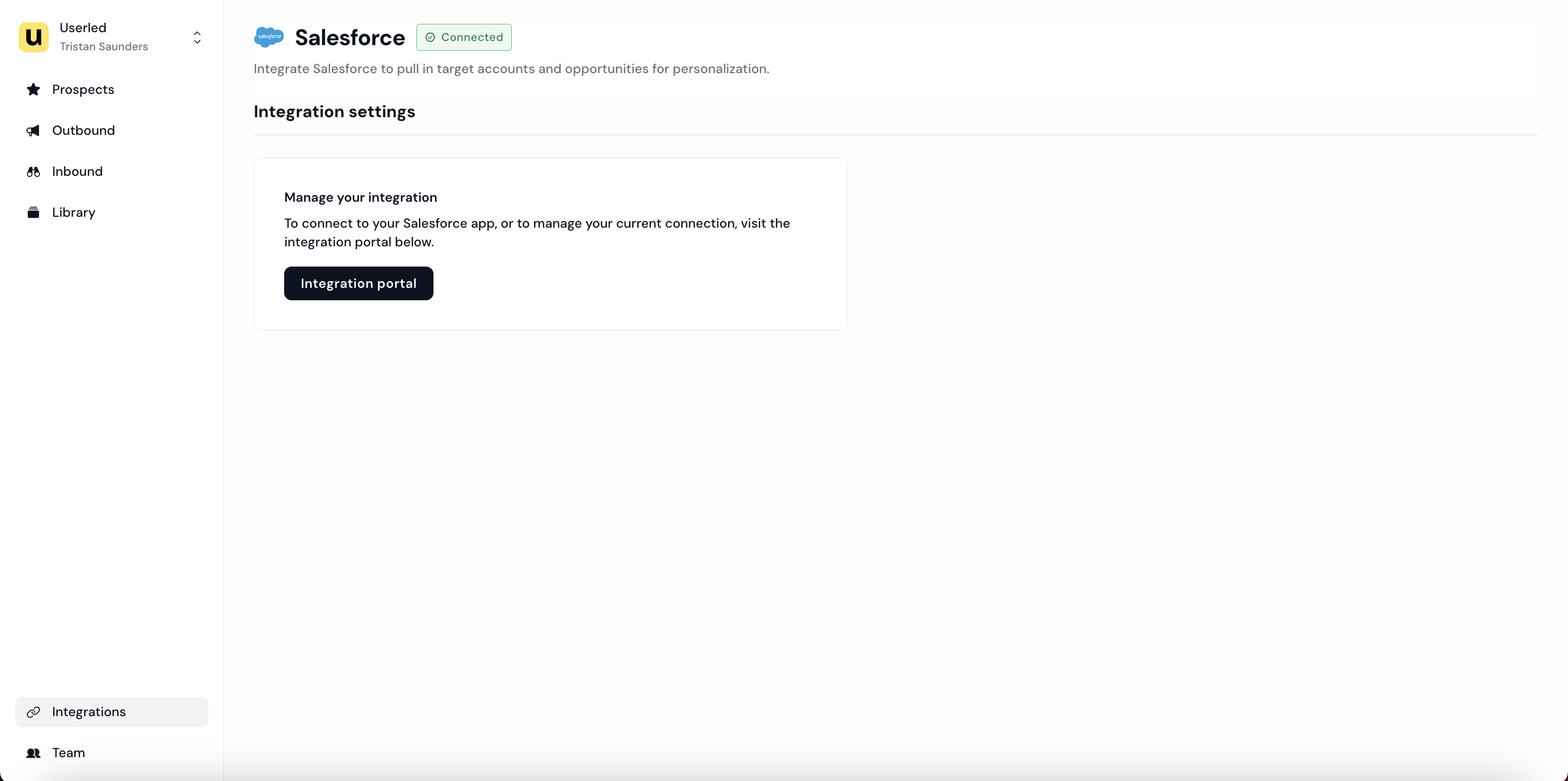
3. Follow the on-screen instructions to authenticate your Salesforce account. You will see a notification saying the integration was successfully added. You’re not done just yet.
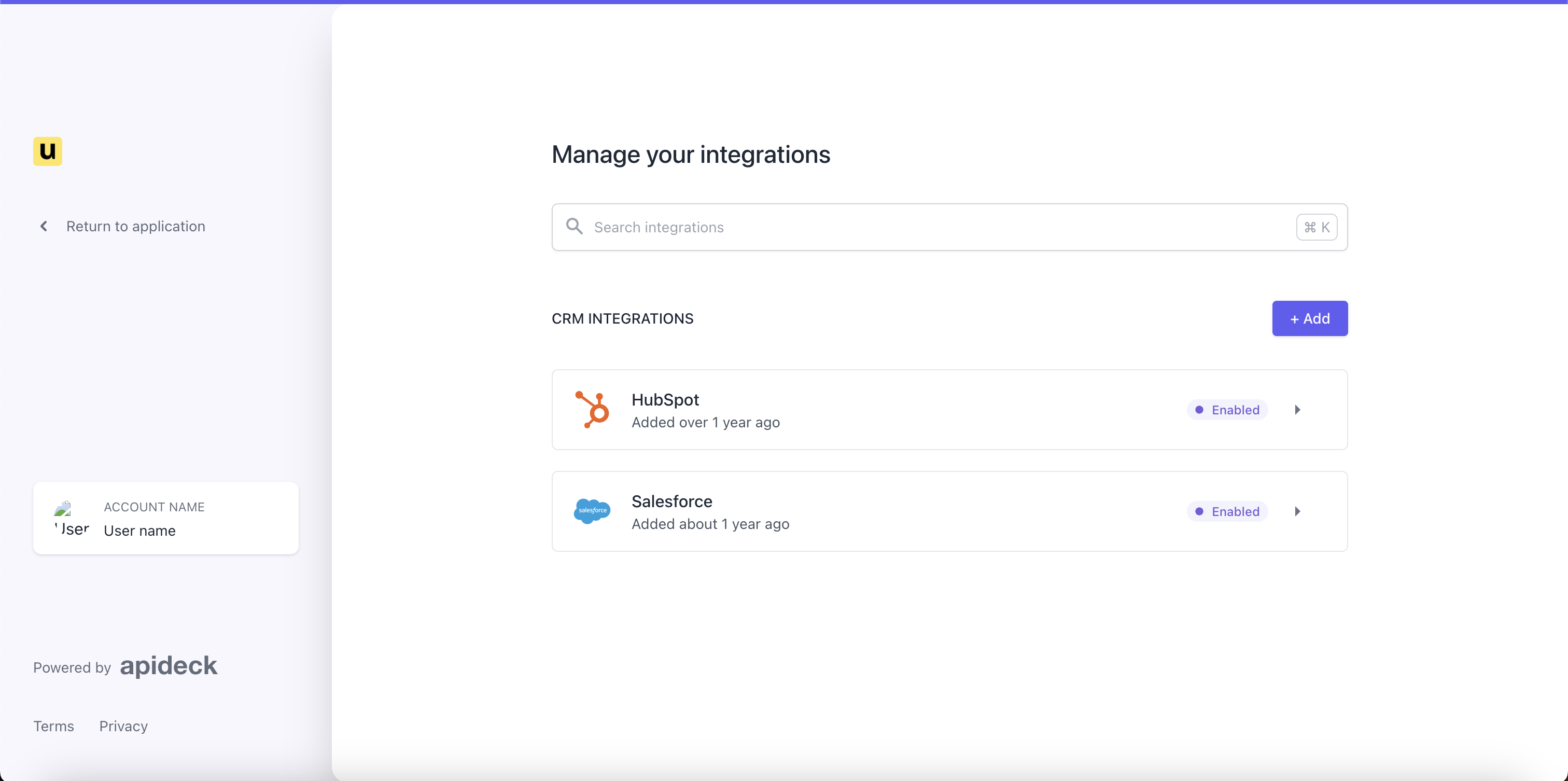
4. Click “Authorise” to authorise your Salesforce to connect to Userled
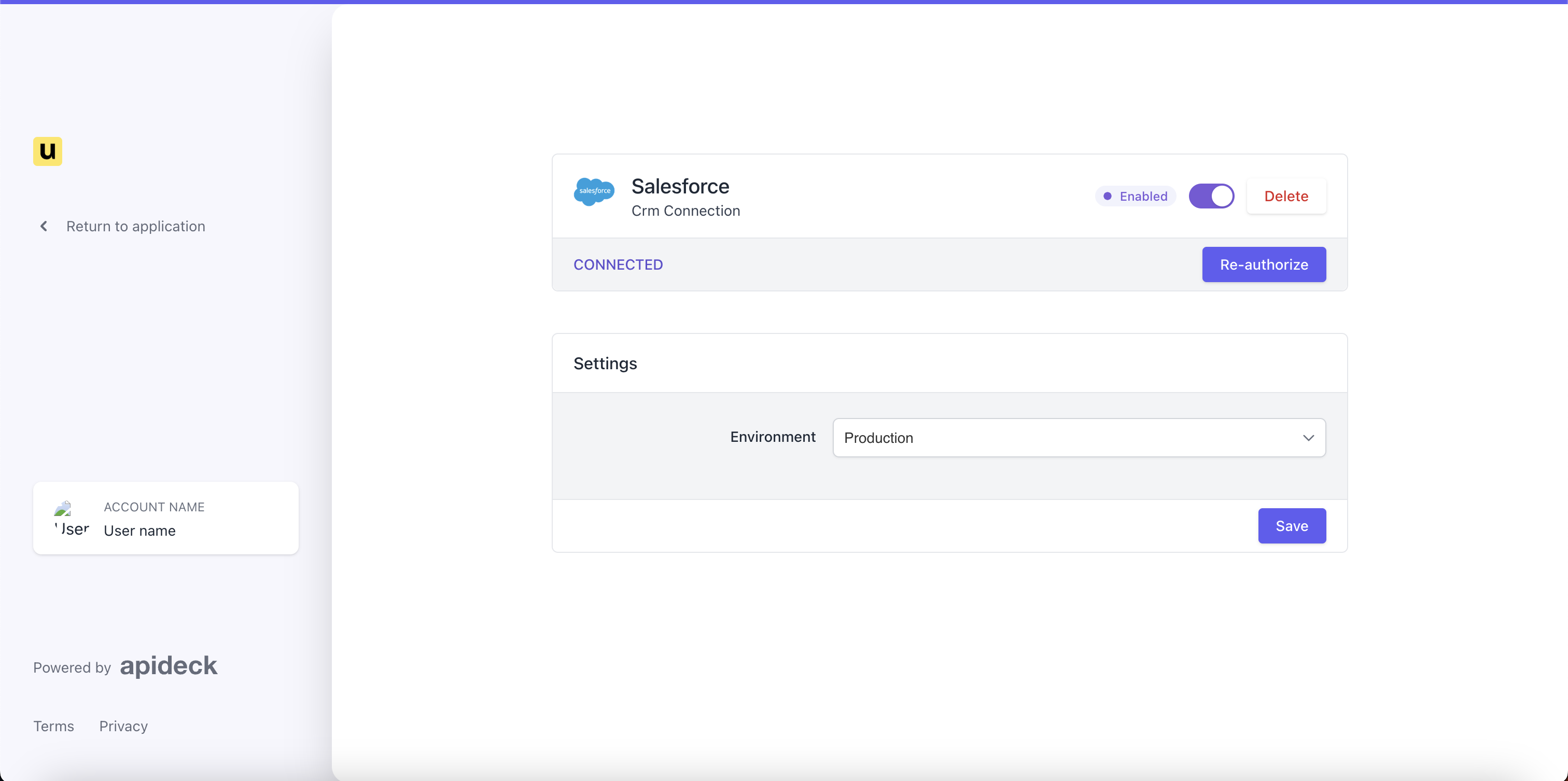
5. Login to Salesforce and follow the Salesforce steps to authorise the connection
6. Navigate back to your Salesforce integration settings to validate it’s connected properly. You should see a “🟢 Connected” status.
Once Salesforce is integrated with Userled, you can:
Create Lists: Import your key accounts and contacts from Salesforce.
Manage Lists: Segment your imported contacts using CRM properties such as industry, deal stage, or any custom fields. This allows you to craft personalised experiences based on these segments.
You can follow our guide for more information on how to create and manage target lists.
CRM distribution lets you sync the personalised experiences you create in Userled directly with Salesforce. Here’s how:
Custom Properties: Experiences are synced against custom properties in Salesforce. This ensures that your sales reps have direct access to these experiences within their workflows, such as sales sequences or email marketing campaigns.
Automation: Set up automatic syncing so that every time you create or update an experience in Userled, it is immediately available in Salesforce.
To surface each personalised experience in Salesforce at the account or contact level, create two custom fields and map them in your CRM sync:
Userled landing page — stores the unique experience URL for that account or contact (the page reps or automation should open or link to).
Userled thumbnail — stores the unique thumbnail image URL for that experience (useful for previews in sequences, emails, or list views).
In Salesforce, add these as fields on the objects you sync to (ideally Account and Contact level). URL fields work well if your links fit Salesforce’s URL limits; otherwise use Text with enough length for long signed URLs.
After the fields exist, include them in your CRM distribution / field mapping so each time Userled targets an account or contact, the current landing page URL and thumbnail URL are written back to those properties. Reps and sequences can then use the same fields in templates, tasks, and cadences without copying links manually.
You can follow our guide for more information on how to sync assets to your CRM and how to use them in sales sequences.
The integration tracks when a prospect clicks on a link to a personalised experience created in Userled. You can view this engagement directly in Salesforce, helping you identify high-interest prospects and prioritise follow-ups.
Website activity tracking monitors the behaviour of prospects when they visit your website after engaging with a personalised experience. The key benefits include:
Real-Time Alerts: Your sales team will receive instant notifications when a prospect visits your site, allowing them to engage while the prospect’s interest is high.
Page Views: You can see which pages the prospect is viewing, providing insights into their interests and needs.
You can read more on our Identity Layer to better understand how Userled identifies website visitors and monitors their activity (spoiler, it's cookieless!).
If you experience any problems with the integration:
Are you admin in Salesforce? Your Salesforce settings may be configured such that only administrators can grant access to tools like Userled. Ensure you have admin privileges in Salesforce or ask your admin to help you with the installation steps.
Salesforce couldn’t complete the connection. Your Salesforce account may not have the features required to enable the connection. In this case, reach out to your Salesforce admin.
If you have any issues, you can reach out to [email protected] and through your dedicated Slack channel.
Here are some best practices:
Regularly update and maintain your CRM data to ensure accurate targeting and personalisation.
Leverage custom fields in Salesforce to create more granular segments for highly personalised experiences.
Use the website activity tracking to inform your outreach strategies, focusing on prospects showing the most interest.
Integrating Salesforce CRM with Userled provides powerful tools to enhance your marketing and sales initiatives. By leveraging this integration, you can deliver highly personalised experiences, streamline your sales processes, and gain deeper insights into your prospects’ behaviours.
💡 Note Salesforce integration is available as part of our Paid plans. If you are considering Userled’s paid offering please reach out to us on [email protected].
If you have any questions, we’re here to help! Please feel free to contact us at any time, either through our Slack Community or via [email protected]