Userled is able to detect when a user clicks a link to your website from an outbound or marketing email. You can use this feature to collect contact-level identities from any clicks to your outreach messages.
This integration often leads to a boost of 20~30% net new identities to your Userled workspace, allowing you to understand how your email prospects are interacting with your content and product.
💡 Tip: the parameter is always ul_e — only the merge field that fills in the email changes between platforms. In Userled, a campaign's Distribute tab → "Share via email platform" builds the full tracked link for you: pick your platform and copy the URL.
Userled offers Outreach specific URL params that can be added to your email templates. Adding these URL params will enable you to track any clicks from when your Marketing or Sales Contacts click a link to your website or a Userled landing page.
Open the Templates tab and either create a new template or editing an existing one
Copy one of the following UTM Links:
If there are no other URL params
?ul_e={{email}}If there are other URL params
&ul_e={{email}}Add the Userled UTMs to links in your templates:
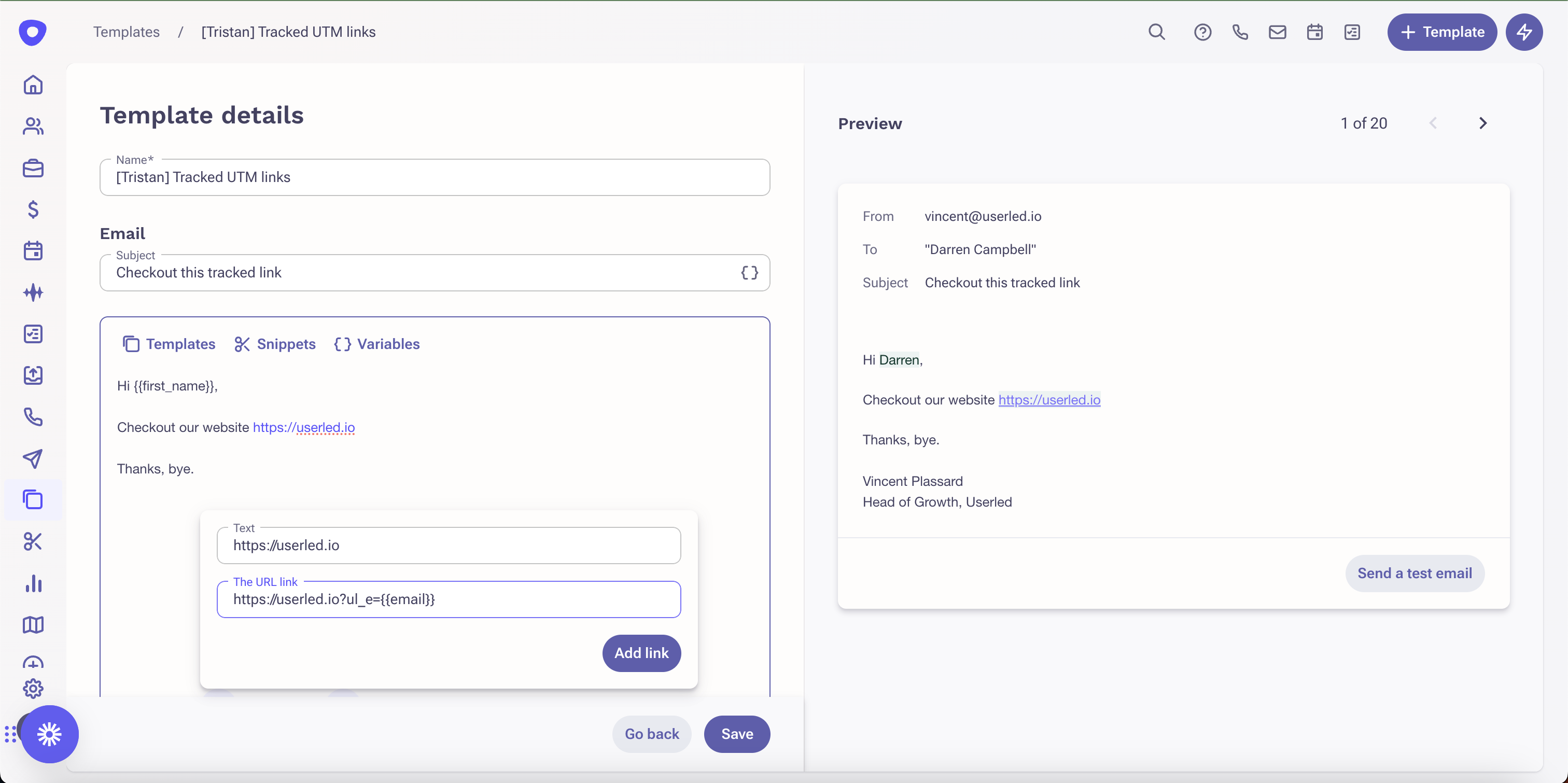
💡 Note: Userled UTMs also work with your snippets. We recommend creating a handful of snippets that you can use for one-off emails.
Userled offers HubSpot specific URL params that can be added to your Marketing and Sales email templates. Adding these URL params will enable you to track any clicks from when your Marketing or Sales Contacts click a link to your website or a Userled landing page.
Open the email template editor:
For Sales templates: Select Automations, then Sequences
For Marketing templates: Select Marketing, then Emails
For templates: Select Library, then Templates
Copy one of the following UTM Links:
If there are no other URL params
?ul_e={{contact.email}}If there are other URL params
&ul_e={{contact.email}}Add the Userled UTMs to links in your templates:
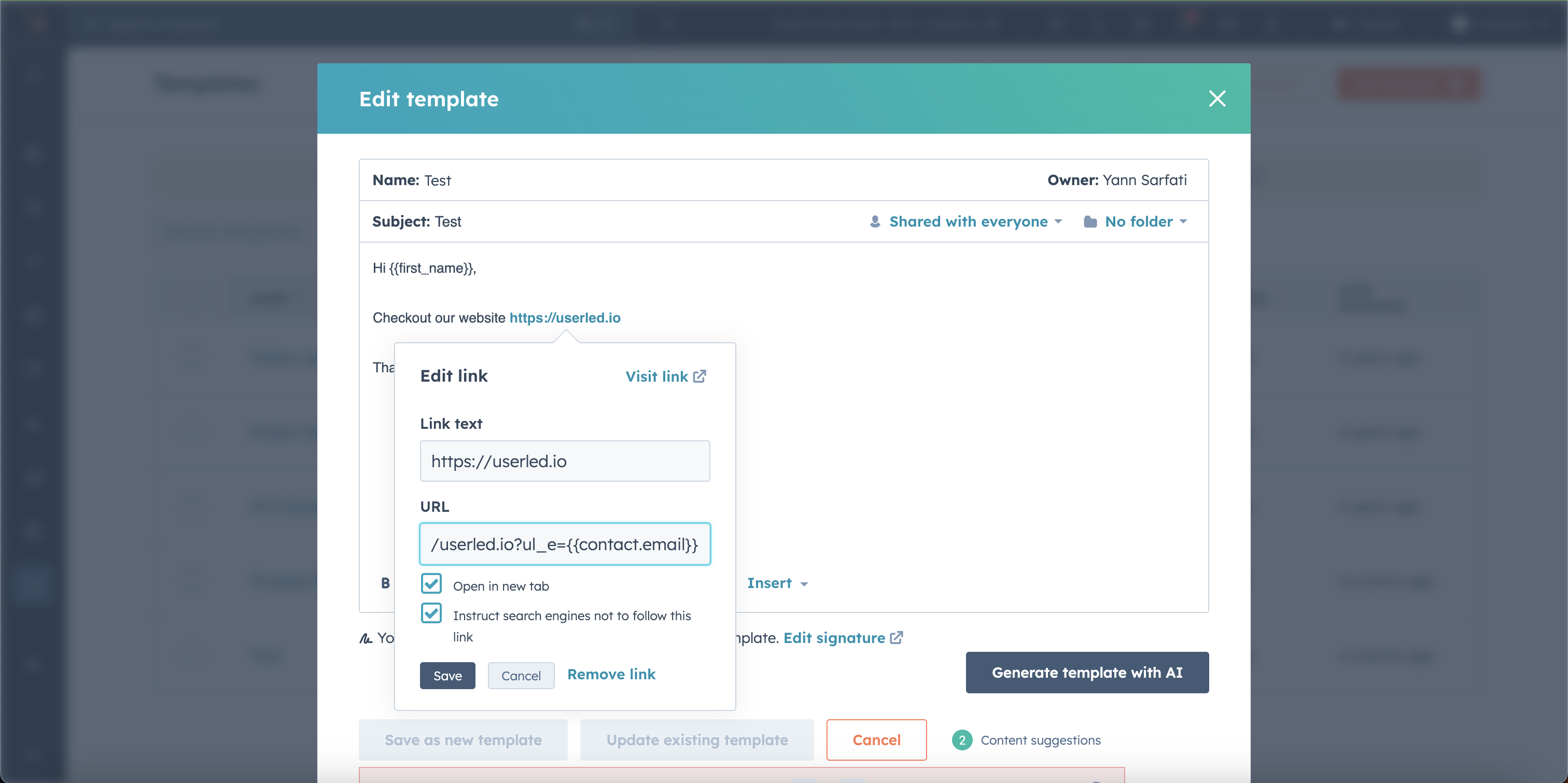
💡 Note: Userled UTMs also work with your snippets. We recommend creating a handful of snippets that you can use for one-off emails.
Marketo uses its own token format. Add the Userled param to links in your Marketo emails so clicks are identified at contact level — this works on account-level links too, as each recipient's email is filled in when the email is sent.
Open your email in the Marketo email editor (Marketing Activities → your program → the email asset → Edit Draft).
Copy one of the following UTM Links:
If there are no other URL params
?ul_e={{lead.Email Address}}If there are other URL params
&ul_e={{lead.Email Address}}Add it to the end of each link in the email, then send yourself a sample and check the link shows your real email address in place of the token.
💡 Optional: to also pass first and last name, add &ul_fn={{lead.First Name}}&ul_ln={{lead.Last Name}} after the email param.
Userled offers Salesforce specific URL params that can be added to your email templates. Adding these URL params will enable you to track any clicks from when your Marketing or Sales Contacts click a link to your website or a Userled landing page.
Open the email template editor (open the App Launcher - the 9 dots top left of the Salesforce dashboard - and search for "Email templates").
Copy one of the following UTM Links:
If there are no other URL params
?ul_e={{{Recipient.Email}}}If there are other URL params
&ul_e={{{Recipient.Email}}}Add the Userled UTMs to links in your templates:
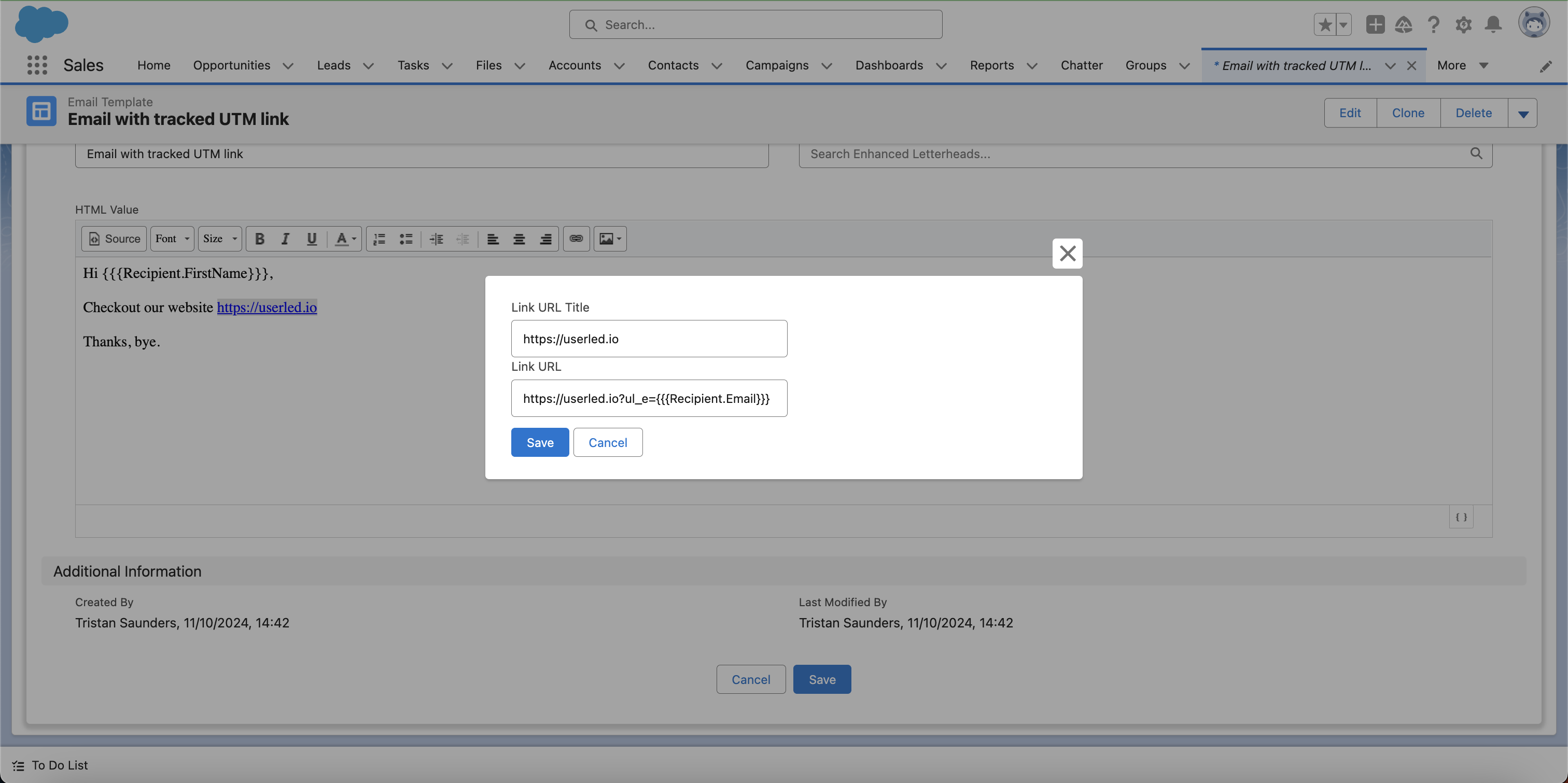
💡 Note: Userled UTMs also work with your snippets. We recommend creating a handful of snippets that you can use for one-off emails.
Update your sequence templates to add Userled UTMs to your links.
Open the Sequences email template editor.
Copy one of the following UTM Links:
If there are no other URL params
?ul_e={{email}}If there are other URL params
&ul_e={{email}}Add the Userled UTMs to links in your templates:
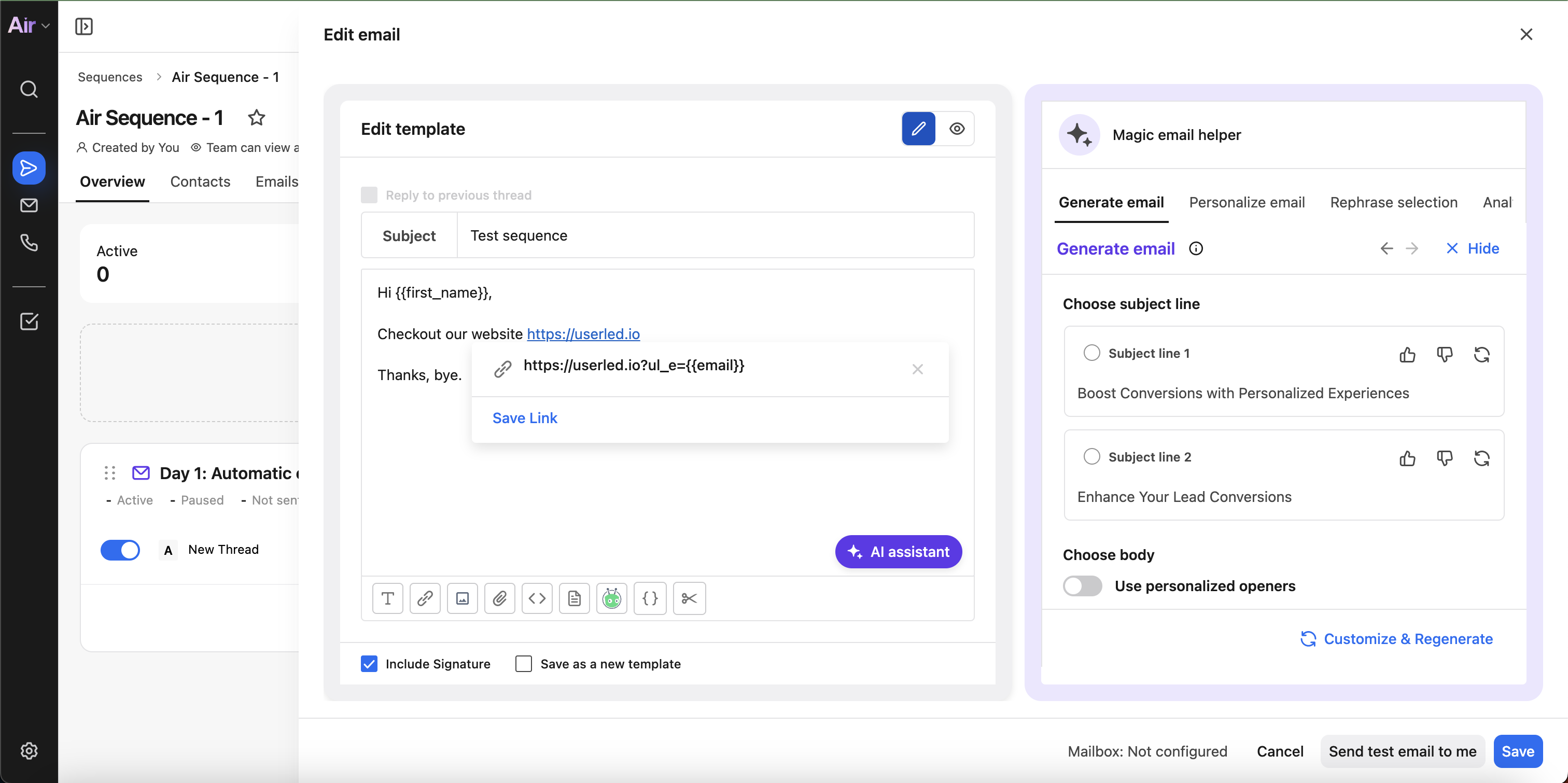
💡 Note: Userled UTMs also work with your snippets. We recommend creating a handful of snippets that you can use for one-off emails.
Update your templates to add Userled UTMs to your links.
Open the email template editor.
Copy one of the following UTM Links:
If there are no other URL params
?ul_e={{email_address}}If there are other URL params
&ul_e={{email_address}}💡 Note: Userled UTMs also work with your snippets. We recommend creating a handful of snippets that you can use for one-off emails.
Update your sequence templates to add Userled UTMs to your links.
Open the Sequences email template editor.
Copy one of the following UTM Links:
If there are no other URL params
?ul_e={{email}}If there are other URL params
&ul_e={{email}}You can tag any outbound links on any platform using the Userled Email param. All you need to do is add ul_e to any URL you'd like to be tracked when a prospect clicks it, using your platform's merge field for the recipient's email.
Start with an email address
[email protected]Copy one of the following UTM Links:
If there are no other URL params
?ul_e={{email}}If there are other URL params
&ul_e={{email}}