Userled works out who is behind a visit, so you can see the people and companies engaging with your content. This article covers every way that happens and how to turn each one on.
A contact is uncovered when Userled knows who the person is: their name and email, tied to a company. That is different from knowing only the company behind a visit, which is still useful and is covered further down.
Userled always uses the strongest signal available. If we later learn something better about a visitor, their record is upgraded. It is never downgraded.
Add your email tool's merge field for the recipient's email address to any link you send. When they click it, Userled knows exactly who they are. This is usually the single biggest source of new contacts, and typically adds 20 to 30 percent more identified traffic.
How to turn it on. Add this to the end of your link. Use & instead of ? if the link already has parameters.
?ul_e={{email}}&ul_fn={{first_name}}&ul_ln={{last_name}}Marketo: {{lead.Email Address}}, {{lead.First Name}}, {{lead.Last Name}}
HubSpot: {{contact.email}}, {{contact.firstname}}, {{contact.lastname}}
Salesforce, contacts: {!Contact.Email}, {!Contact.FirstName}, {!Contact.LastName}
Salesforce, leads: {!Lead.Email}, {!Lead.FirstName}, {!Lead.LastName}
Outreach, Apollo and Amplemarket: {{email}}, {{first_name}}, {{last_name}}
Salesloft: {{email_address}}, {{first_name}}, {{last_name}}
Campaigns build these links for you. Open your campaign, go to Distribute, and choose Distribute via email link. Userled removes the parameters from the address bar as soon as the page loads, so the visitor never sees them.
For the step by step version in each tool, see Identify Email Recipients.
When you generate a campaign for a list of contacts, Userled creates a unique link for each person. That link identifies them on its own, so you do not need to add any parameters to it.
If you target a list of accounts instead of contacts, the link identifies the company rather than the person.
Any form on a Userled experience can uncover the person who fills it in, as long as they give a work email. It works with:
HubSpot forms
Marketo forms
Any other form added as an HTML embed
Interactive tools such as ROI calculators and value reports, even when they are not built as a standard form
How to turn it on. Add the form using the provider's HTML embed code, not a link inside an iframe. An iframe pointing at another address will render the form, but Userled cannot read the submission.
Submissions appear in the campaign Leads panel. For the full setup, see Tracking forms added with an HTML embed.
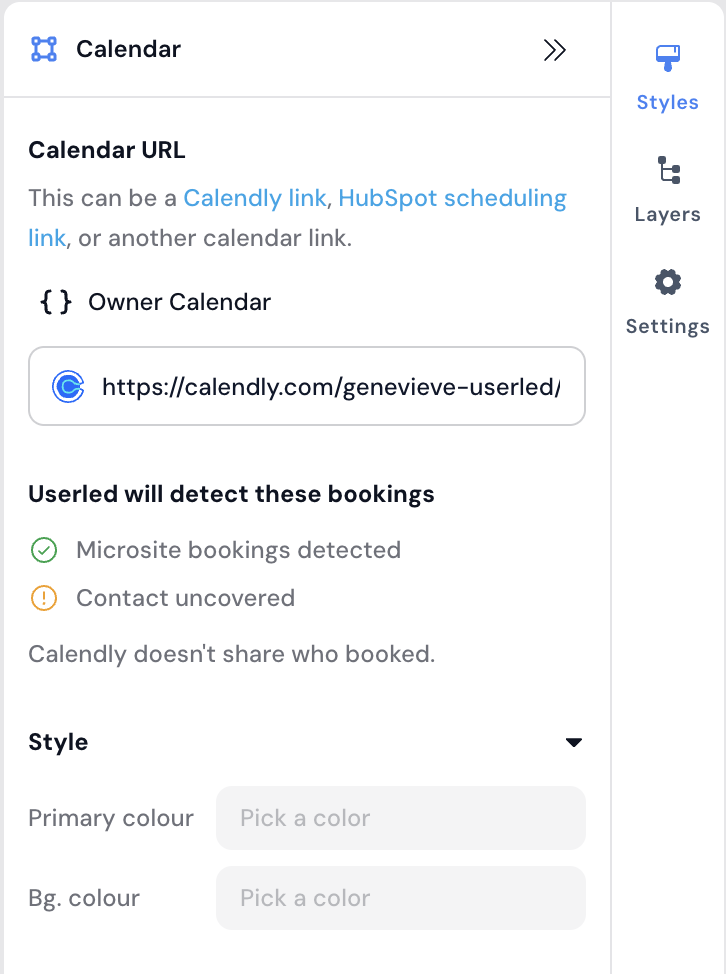
When someone books a meeting from one of your experiences, most booking tools pass the attendee's details through, and Userled identifies the visitor.
Meeting Platforms:
HubSpot Meetings
Cal.com
Chili Piper
SavvyCal
Calendly
Salesloft Meetings
Google Calendar
Microsoft Bookings
Acuity
YouCanBook.me
OnceHub
TidyCal
Zcal
Zoho Bookings
Doodle

You can ask visitors for their work email before they see a page or content hub. Everyone who unlocks it is uncovered.
How to turn it on. In the editor sidebar, switch on Require work email. You can also require a verification code sent to their inbox, and limit access to specific email domains.
Visitors Userled already recognises skip the gate, so you are not asking the same person twice. Available on outbound landing pages and standalone content hubs.
If your website runs HubSpot tracking alongside Userled, Userled matches the visitor to their HubSpot contact automatically. There is no setup beyond having both installed on the page and your HubSpot integration connected.
Vector identifies individual people visiting your site and passes their name, job title, company and LinkedIn profile back to Userled. Free up to 1,000 enrichments a month. See Vector to connect it.
If you already know who an anonymous visitor is, you can name them. Open the account, find the visitor on the Contacts tab, and choose Manually identify user. All of their past sessions move onto the real contact.
Not every visit can be traced to a person. Where it cannot, Userled still works out the company behind it.
Userled checks the visitor's IP address against Demandbase, 6sense and Clearbit, and uses the best match. This gives you the company, not the person, so the visit shows as an anonymous visitor at a named company.
If that same person later clicks an email link or fills in a form, their earlier visits are joined up to them.
When you target a list of accounts rather than contacts, each link identifies the company behind the click. Use contact lists wherever you have the contacts, and account lists where you do not.
LinkedIn does not tell advertisers who clicked an ad, so ad traffic is uncovered at company level. To reach the person, put a form on the landing page, or follow up with a tracked email link.
Their earlier anonymous visits are joined up. Someone can browse anonymously for weeks, then click one email link, and all of that earlier activity is attributed to them.
They are recognised across your domains, wherever you have installed the Userled SDK.
Their record only improves. A stronger signal upgrades it, a weaker one never replaces it.
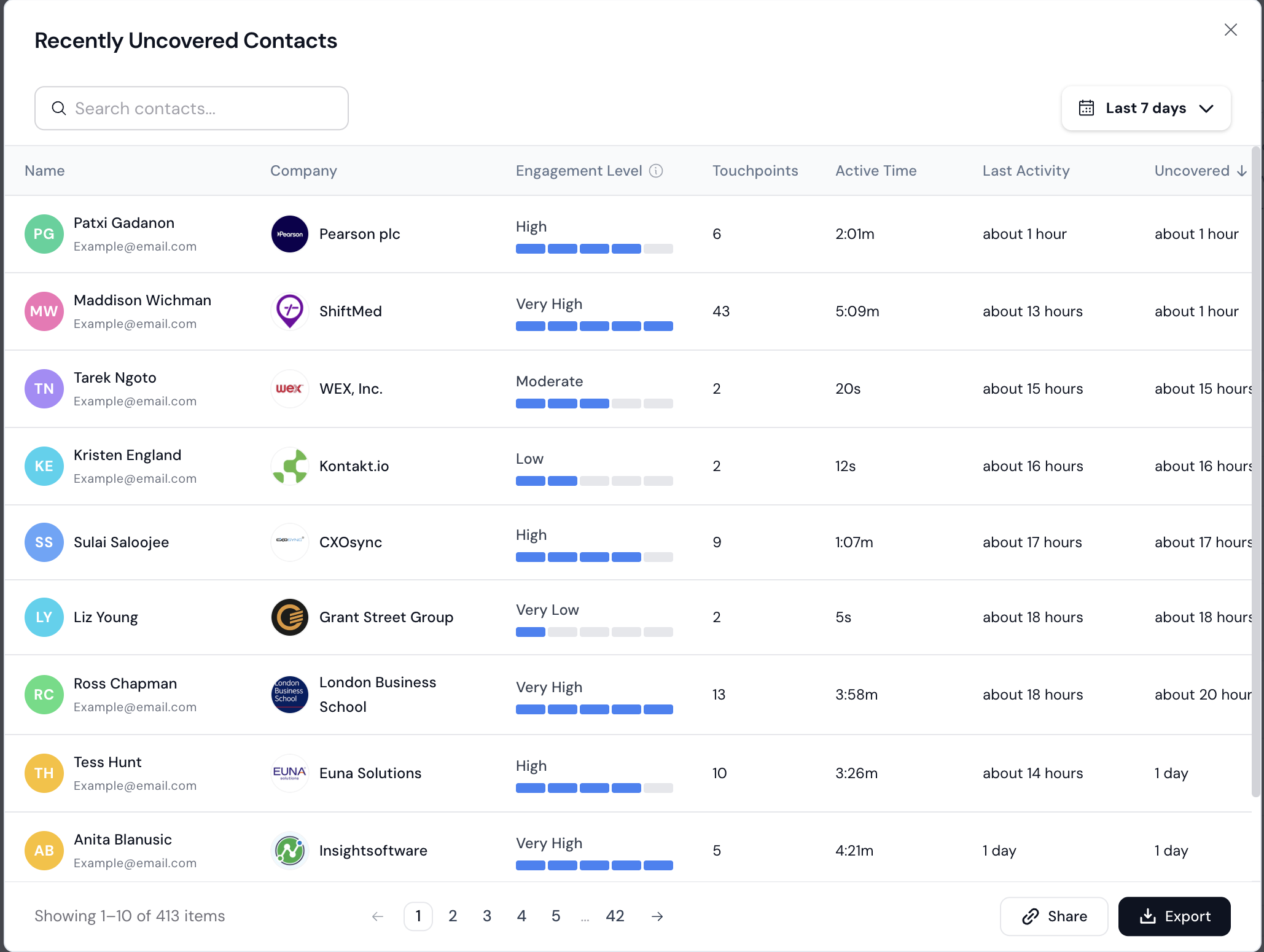
You will find uncovered contacts in:
Recently Uncovered Contacts on your dashboard
The Contacts tab on any account, split into Identified and Anonymous
The Engagement tab on any campaign
A CSV export from any of the above
The New Contact Discovered Slack alert
Your Week in Review and Month in Review digest
In order of impact:
Install the Userled SDK on every domain you want to track.
Add the ul_e merge field to the links in your email and sequence templates.
Add forms with the provider's HTML embed, not a link in an iframe.
If you use a consent tool such as OneTrust or Cookiebot, make sure it is wired up to Userled consent.
Target contact lists rather than account lists wherever you have the contacts.
Turn on Require work email for your highest value gated assets.
Use a booking tool that passes attendee details, or put a form before the booking step.
Connect an enrichment partner to cover the rest of your traffic at company level.
Turn on the New Contact Discovered Slack alert so your team acts on them.
If you use your own consent tool, such as OneTrust or Cookiebot, it has to tell Userled when a visitor accepts. If that is not wired up, Userled stays paused and tracks nothing, even after the visitor clicks accept. Your CSM can confirm the setup.
Check the form was added as an HTML embed rather than a link in an iframe.
Test with a real click. Submitting through a script can skip the event we listen for.
Allow for reporting lag. Dashboard tiles update on a delay, so check the campaign Leads panel first.
Userled uncovers contacts from work email addresses. A personal address such as gmail.com will not create a new contact on its own, unless that domain already exists as an account in your workspace.