Distribute your personalised Userled assets as LinkedIn ads, with one ad tailored to each target account or contact. Userled builds the campaign structure and syncs it to LinkedIn Campaign Manager for you.

Not seeing the LinkedIn Ads tab? Speak to your account manager to get access.
Create your campaign in Userled and choose how to personalise:
Variables - Pull details from your CRM or campaign source (e.g. account name, industry). Best for scale. Limit: 500 targets.
AI - Richer, more bespoke assets for a smaller set of targets. Limit: 20 targets.
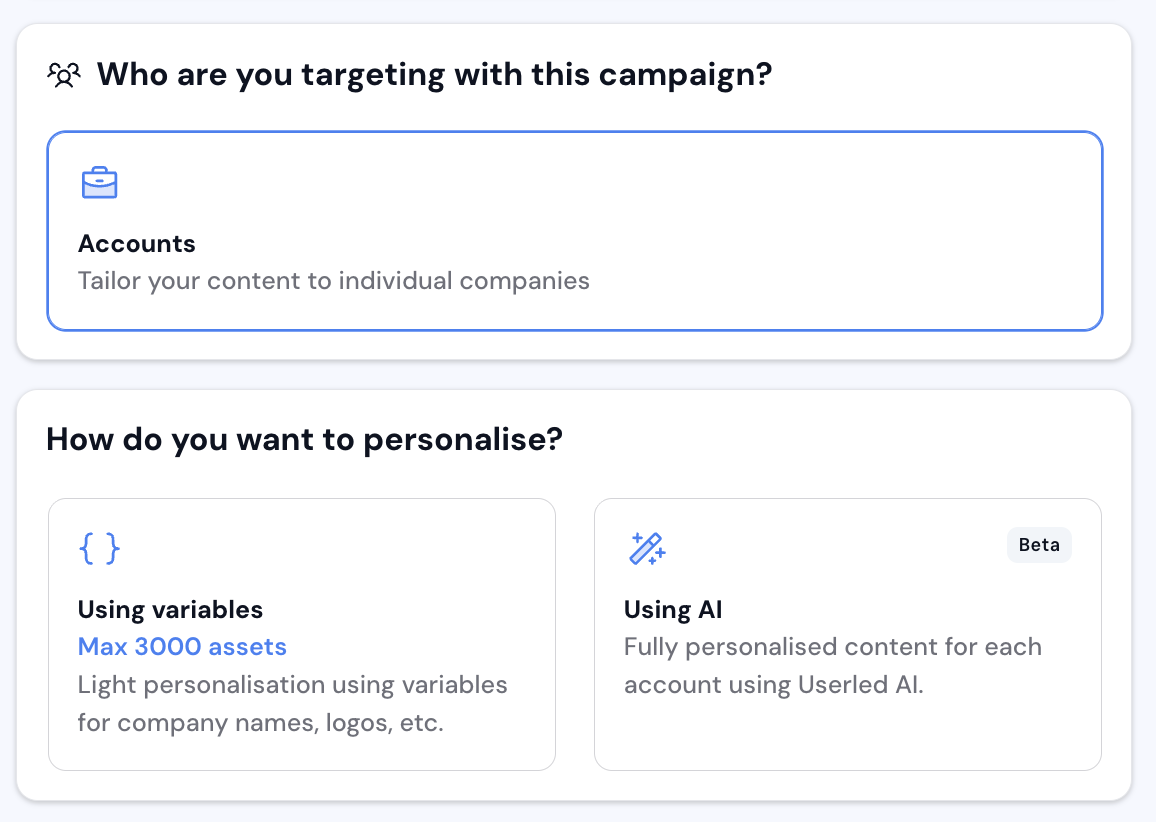
Select your data source (connected CRM or CSV import).
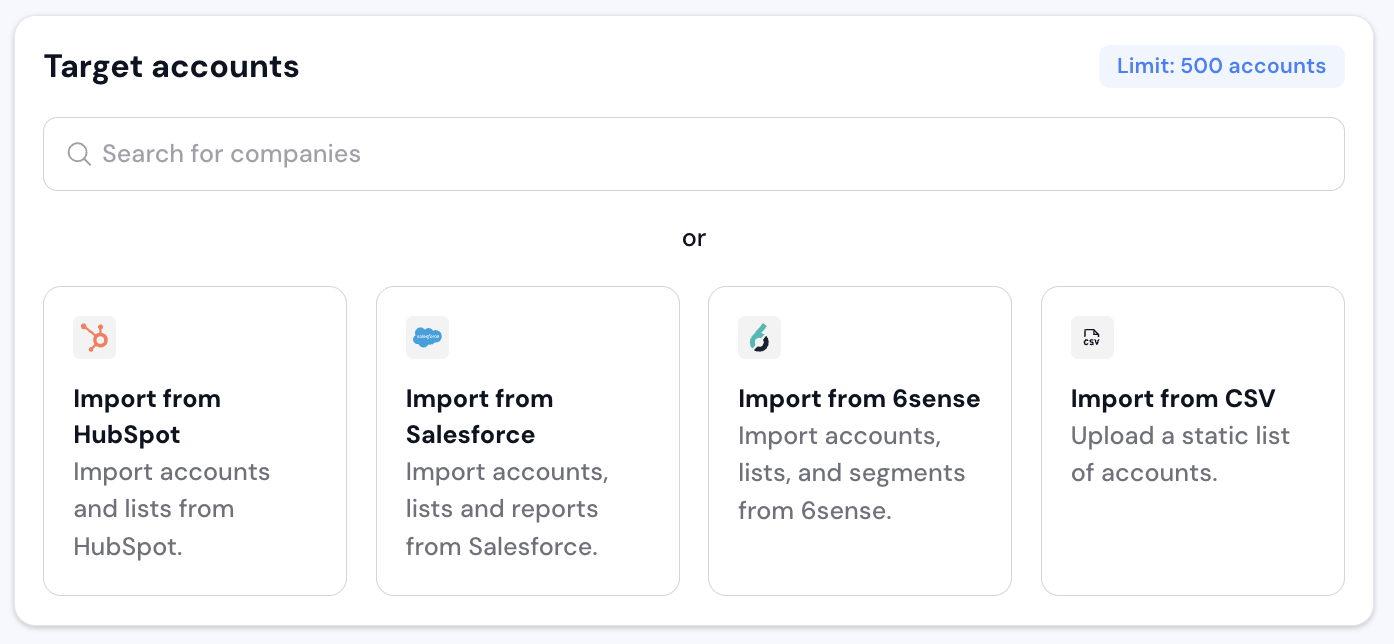
Choose your LinkedIn ad format:
Image - Promote account-level personalised ad images.
Document - Share valuable content directly in the LinkedIn feed.
Video - Tell a richer story delivered directly in the LinkedIn feed.
Your format choice affects later options: personalised ad body text is supported on Image and Video only (not Document), and in the 1:1 flow the Lead Gen objective can’t be combined with the Document format.
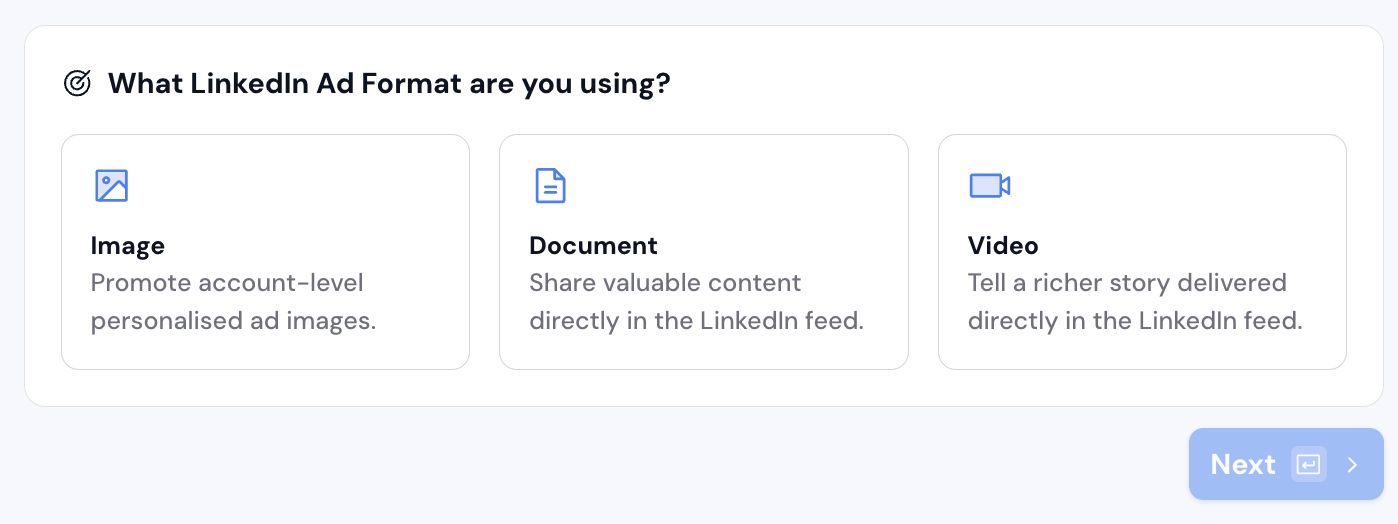
Import your LinkedIn ad creatives from the template library - 2-5 creatives is a good range for reach and engagement (at least 1 required).
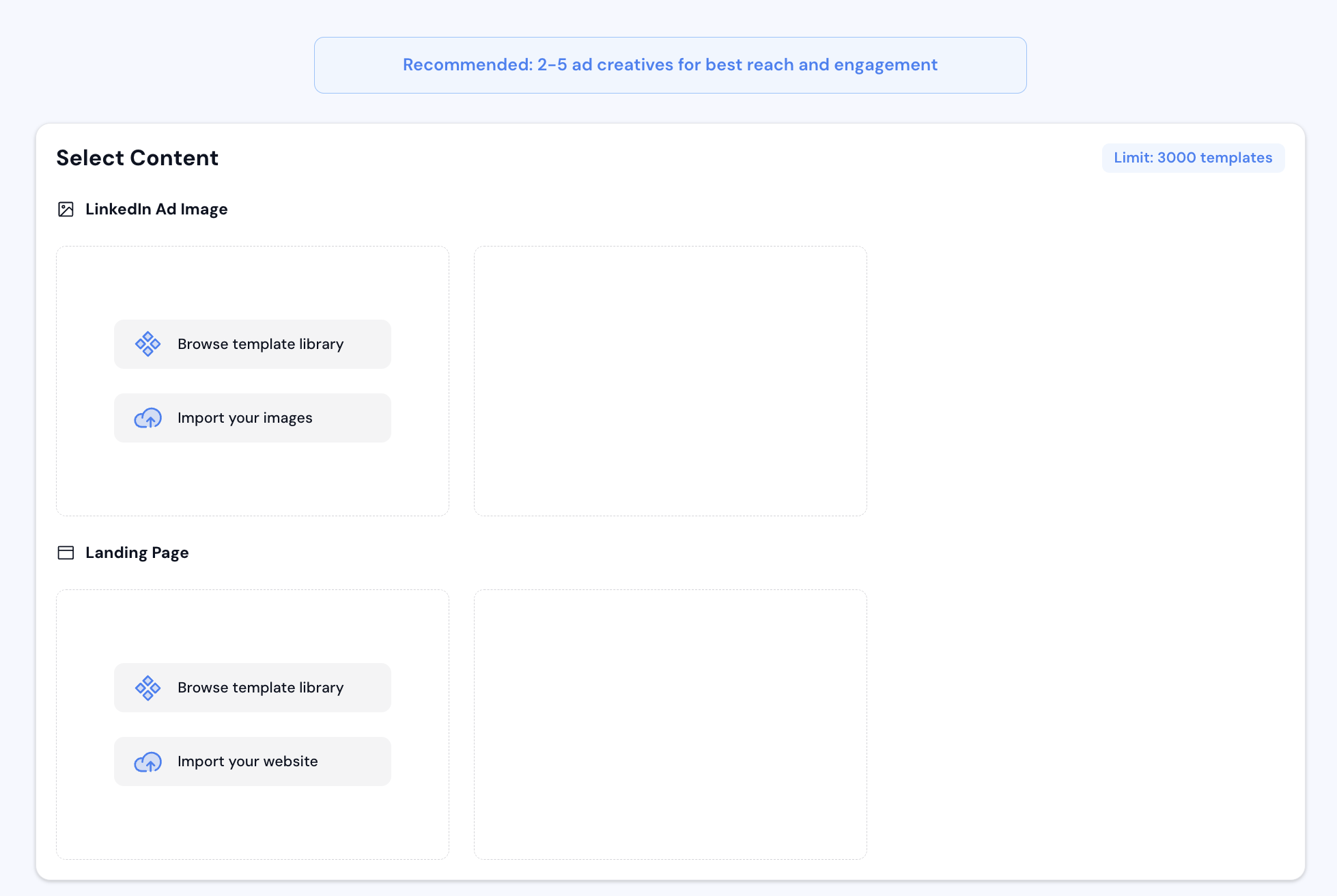
Make any edits, then select Publish to generate the assets for all targeted accounts at once.
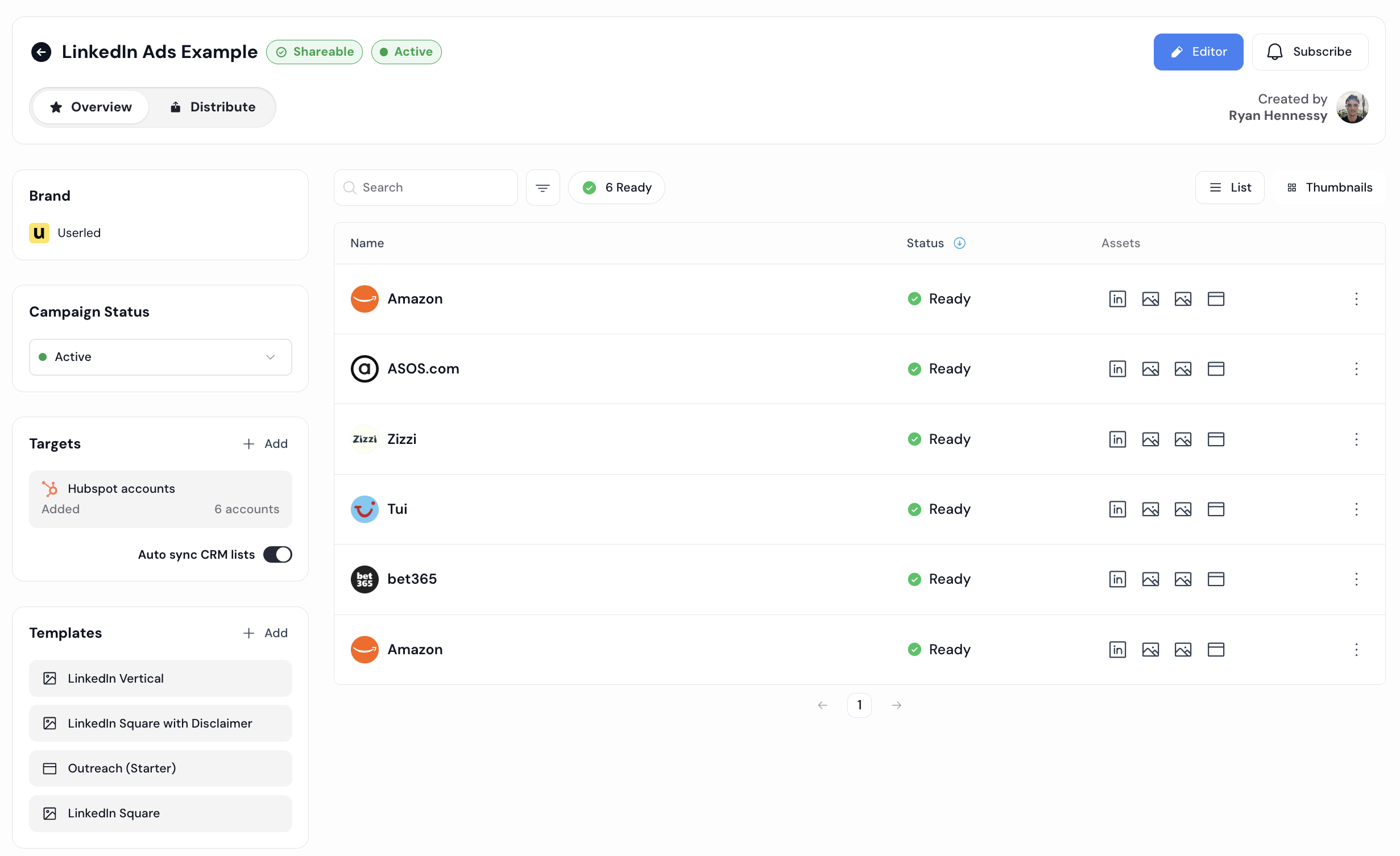
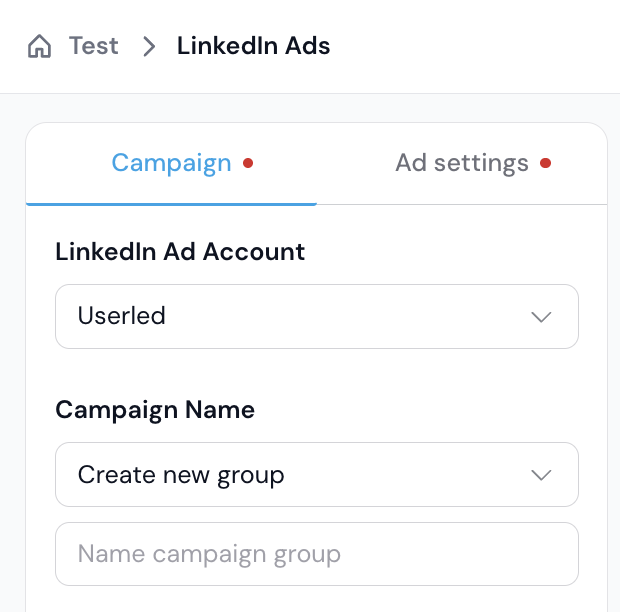
Open the campaign's Distribute tab, go to Distribute via Campaign Manager, and select the ad account and ad group you want to run the campaign from.
Refine your audience with filters (job function, seniority, skills, location, etc.).
Saved audiences - reuse a saved audience definition instead of rebuilding it each time.
Matching your accounts to LinkedIn companies - by default Userled matches on Account Name. To improve the match rate, set a custom matching rule and match on a LinkedIn company profile URL or LinkedIn company ID from a CRM field or CSV column instead.
Conflicting-audience protection - incompatible audience categories are greyed out in the builder, and overlapping or contradictory definitions are blocked, so you catch issues before syncing to LinkedIn rather than after.
Accounts under 300 members - LinkedIn requires a matched audience of at least 300. For small accounts that fall below this, enable Include your ad account's organisation to add your own company and lift the audience over the threshold without affecting your targeting. Best used on pay-per-click campaigns, and your own employees shouldn't click the ad.
Budget & bidding - enter manually or use a preset bidding strategy. See LinkedIn Audience Bidding.
Campaign name - give it something descriptive.
Campaign objective - choose your objective:
Brand Awareness
Website Visit
Engagement
Lead Gen - supports LinkedIn Lead Gen Forms (a form is required for this objective).
Start date - today or a future date. A past date prevents the campaign from syncing.
Note: Once a campaign is synced, its objective is locked and can't be changed. In the 1:1 flow, the Lead Gen objective can't be combined with the Document ad format.
Enter the ad copy that accompanies your creative. You can personalise the ad body text per contact using variables, so one campaign greets each person differently.
Drop these into the Personalised ad body text field and LinkedIn fills them in when the ad is delivered. If LinkedIn can't personalise for someone, they see your regular ad text instead, so nothing looks broken.
Available on Lead Gen, Website Visit, and Engagement objectives (not Brand Awareness), on single-image and video ads (not Document ads).
Select Sync to LinkedIn and review the summary. The first time you sync a campaign, you'll be asked to confirm everything is correct.
You'll see a syncing status followed by a successful or failed result. Once you get a successful sync confirmation, Go live - either with the Go live button in Userled or by setting the campaign to active in LinkedIn Campaign Manager.
Use bulk actions to act on several LinkedIn campaigns at once instead of one at a time.